 Strata by TideReach Ltd
Strata User Guide
Strata shows what is on your file servers: how much, how old, what kind, who owns it, who can reach it, and how it changes. Every page reads the latest scan of each source (a share or path Strata collects), and Source at the top narrows everything to one.
For installing, first-run setup and licensing, see the Installation Guide.
Overview
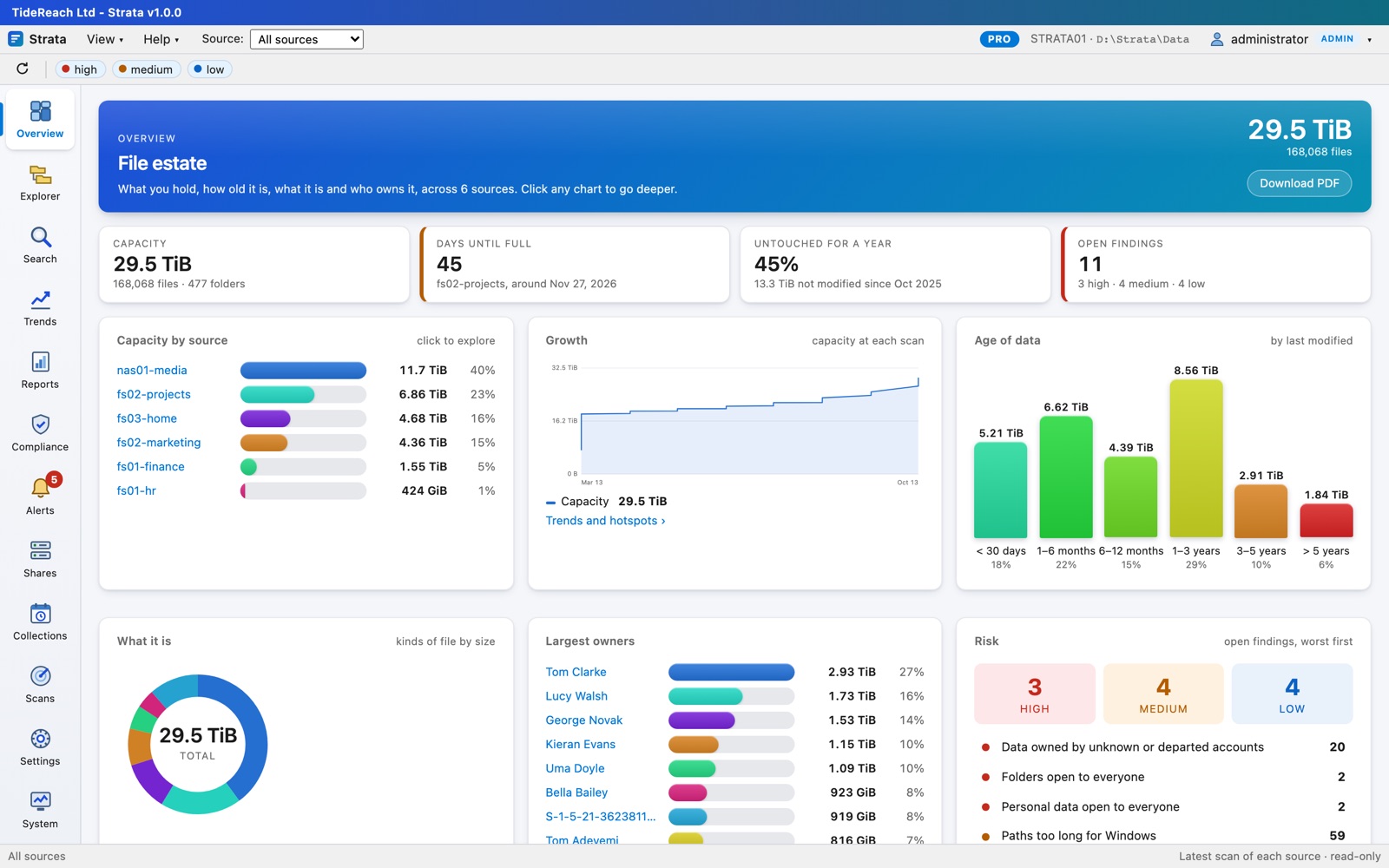
The estate at a glance: capacity by source, growth across scans, age of data, kinds of file, the largest owners and the open findings. Click any chart to go deeper. It is built from summaries Strata keeps up to date after each scan, so it appears at once even for tens of millions of files.
Explorer
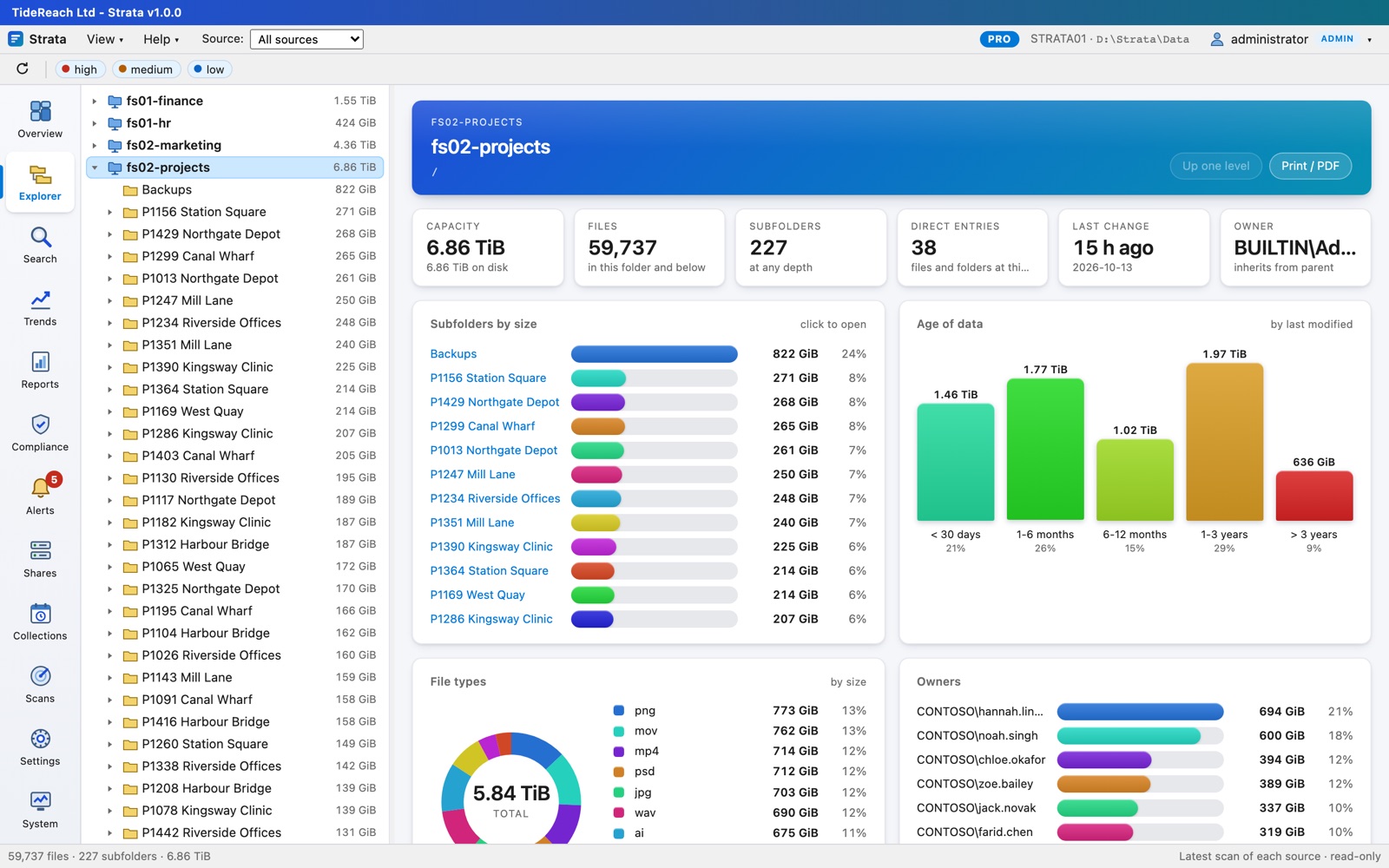
Browse any source as a folder tree with sizes. For each folder: capacity, files, subfolders, last change, its owner (and their manager), subfolders by size, the age of its data, file types, owners and the largest files. Hints point out what to fix: flat folders with tens of thousands of entries, deep nesting, paths too long for Windows, and folders anyone can change.
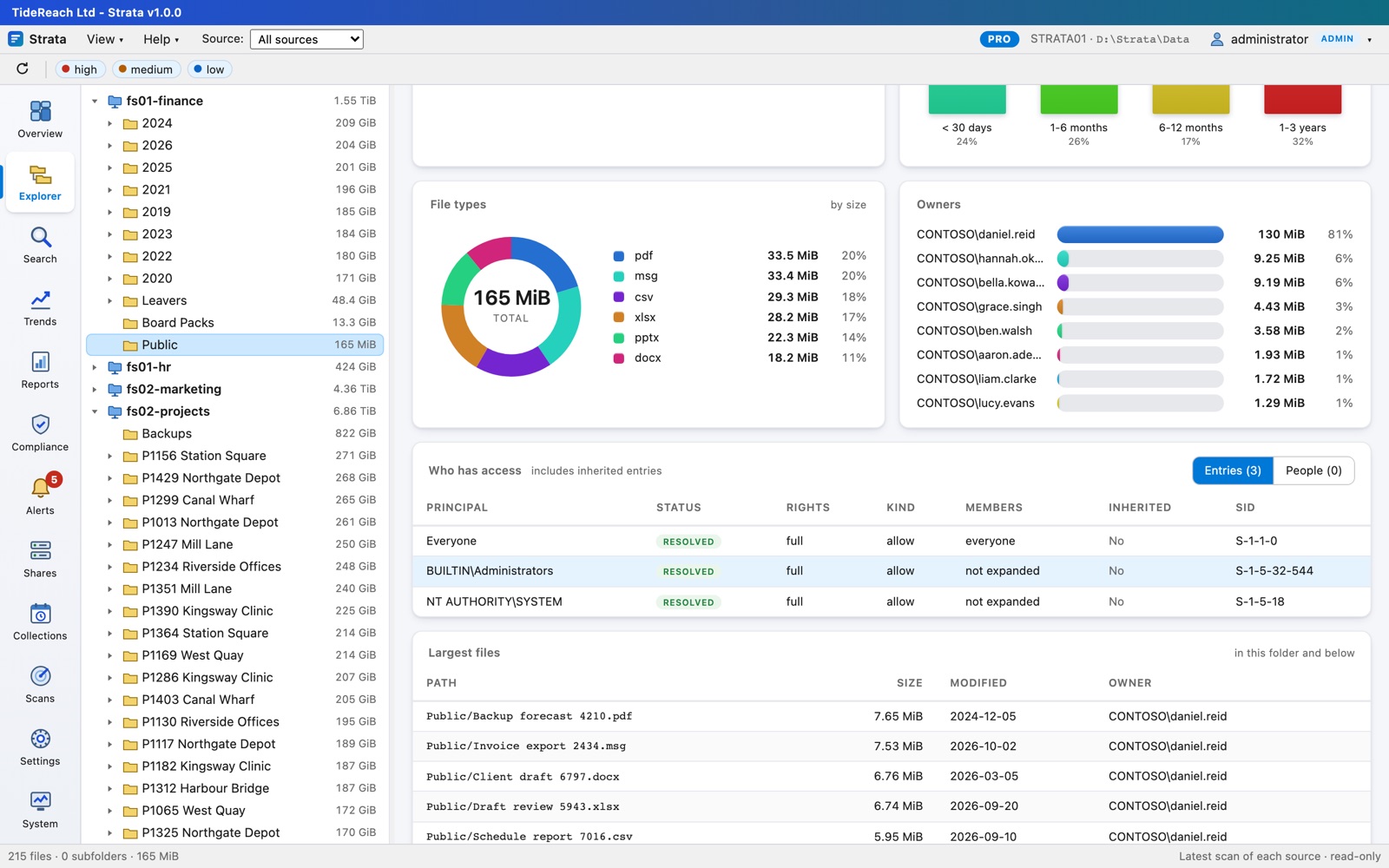
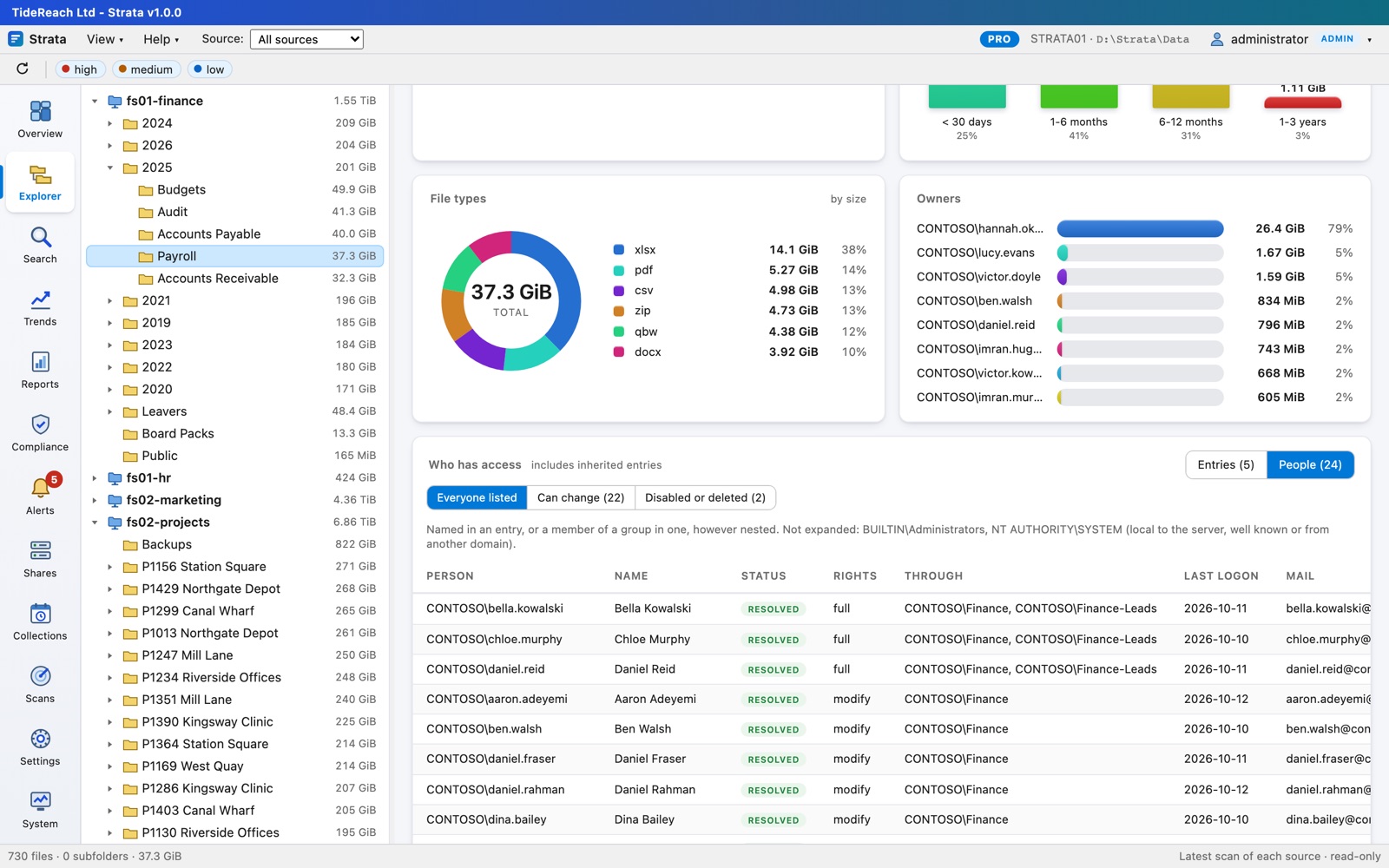
Who has access lists the folder's permission entries, with how many people each group really contains. People (Pro) turns them into the people behind them, through nested groups, with their strongest right and the groups that grant it; filter to those who can change data, or to disabled and deleted accounts.
Search
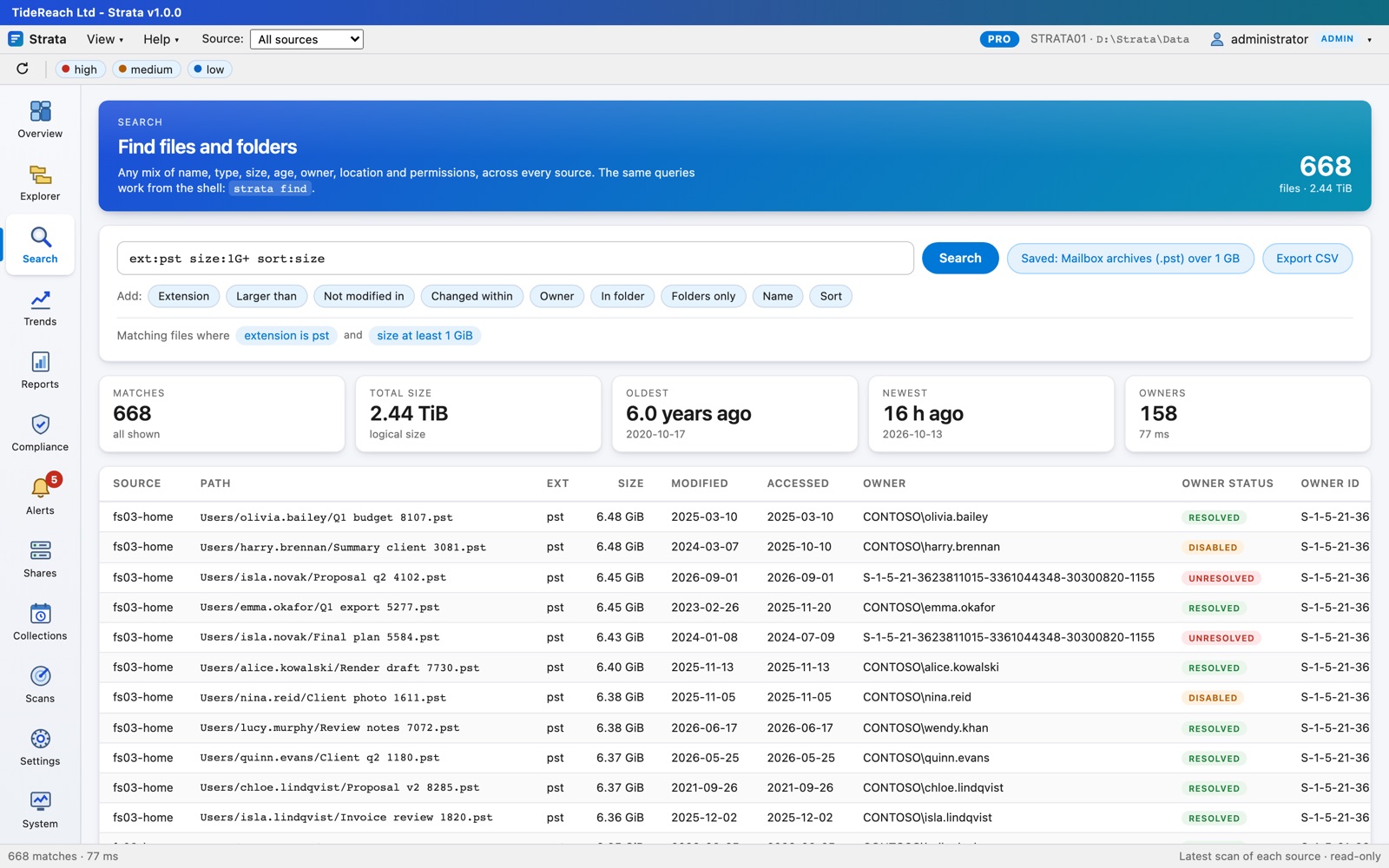
Find files or folders by any mix of name, extension, size, age, owner, location and permissions:
| Query | Finds |
|---|---|
ext:pst size:1G+ sort:size |
mailbox archives over 1 GB, biggest first |
ext:mp4,mov older:3y |
video untouched for three years |
owner:jsmith in:Finance |
a person's files in one share |
type:dir entries:10000+ |
folders with 10,000 or more entries |
is:world-writable |
files anyone can change (NFS/local) |
pathlen:220+ |
paths too long for Windows |
Export any result as CSV. Save… keeps a search, private or shared; Watch raises an alert whenever a scan brings new matches (for example ext:locked,encrypted).
Reports
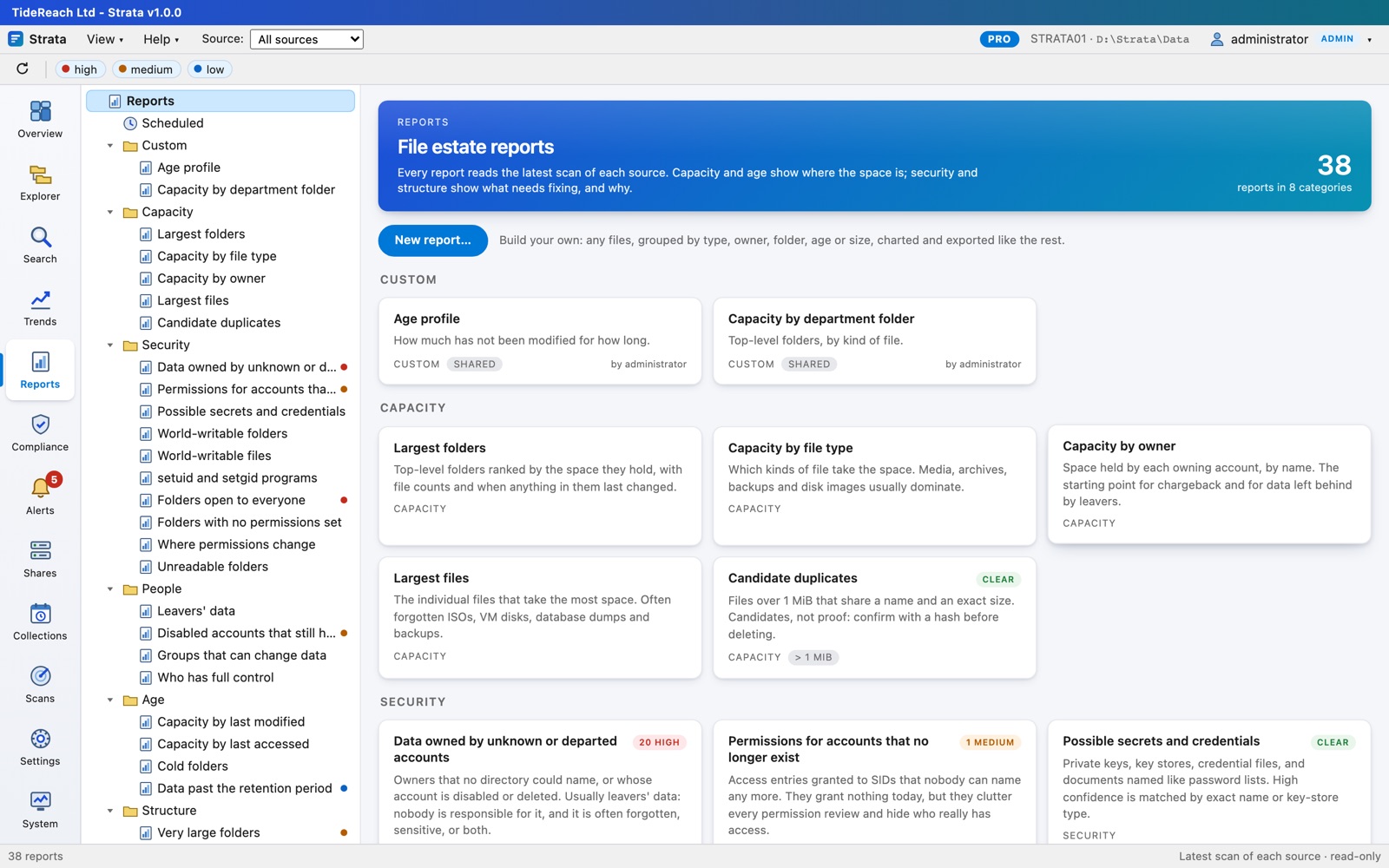
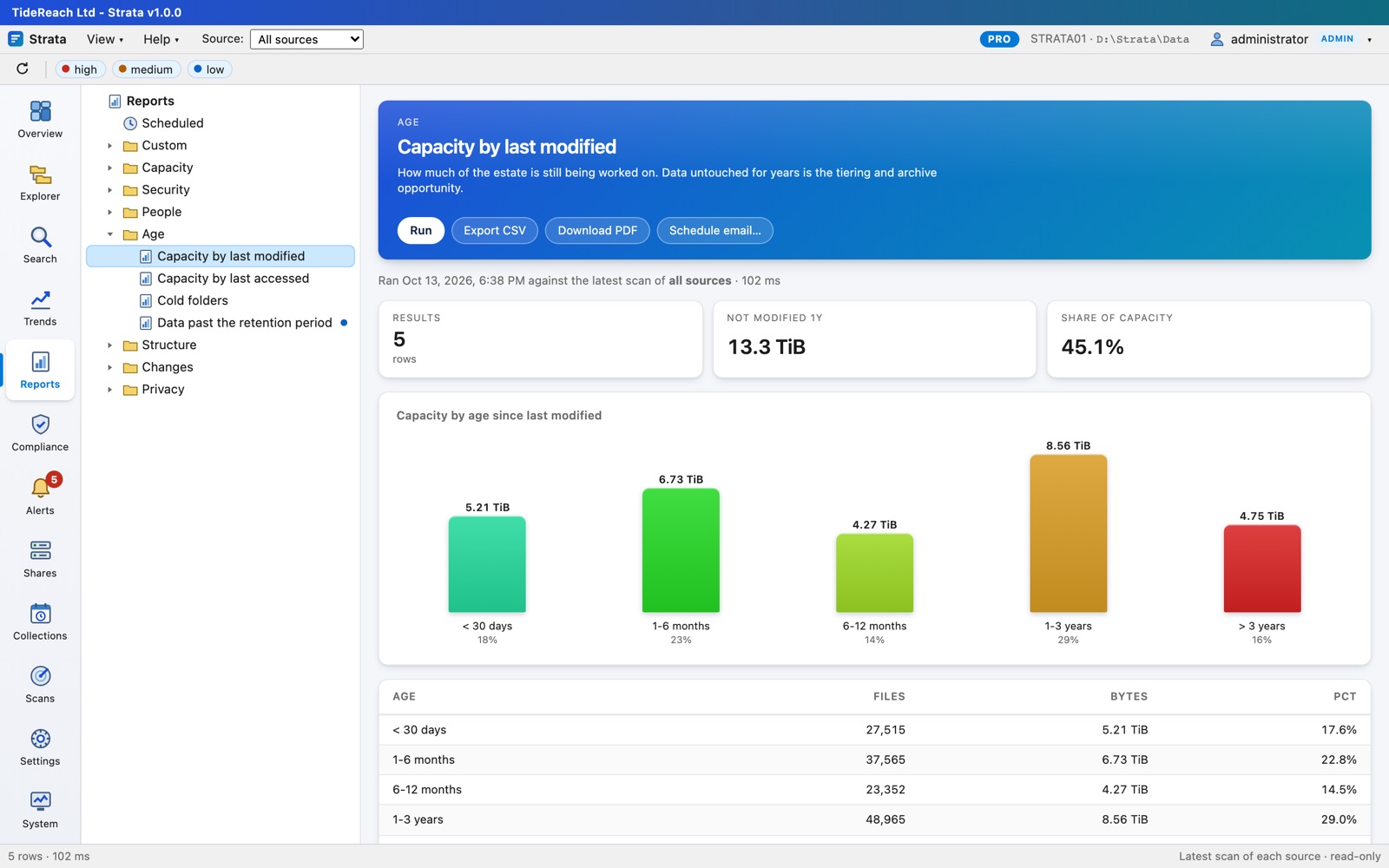
Thirty-plus reports in Capacity, Age, Structure, Changes, Security, People and Privacy, each with headline figures, a chart, a sortable table, CSV export and a PDF download. Reports with findings show their count and severity; the Overview's risk panel links straight to them.
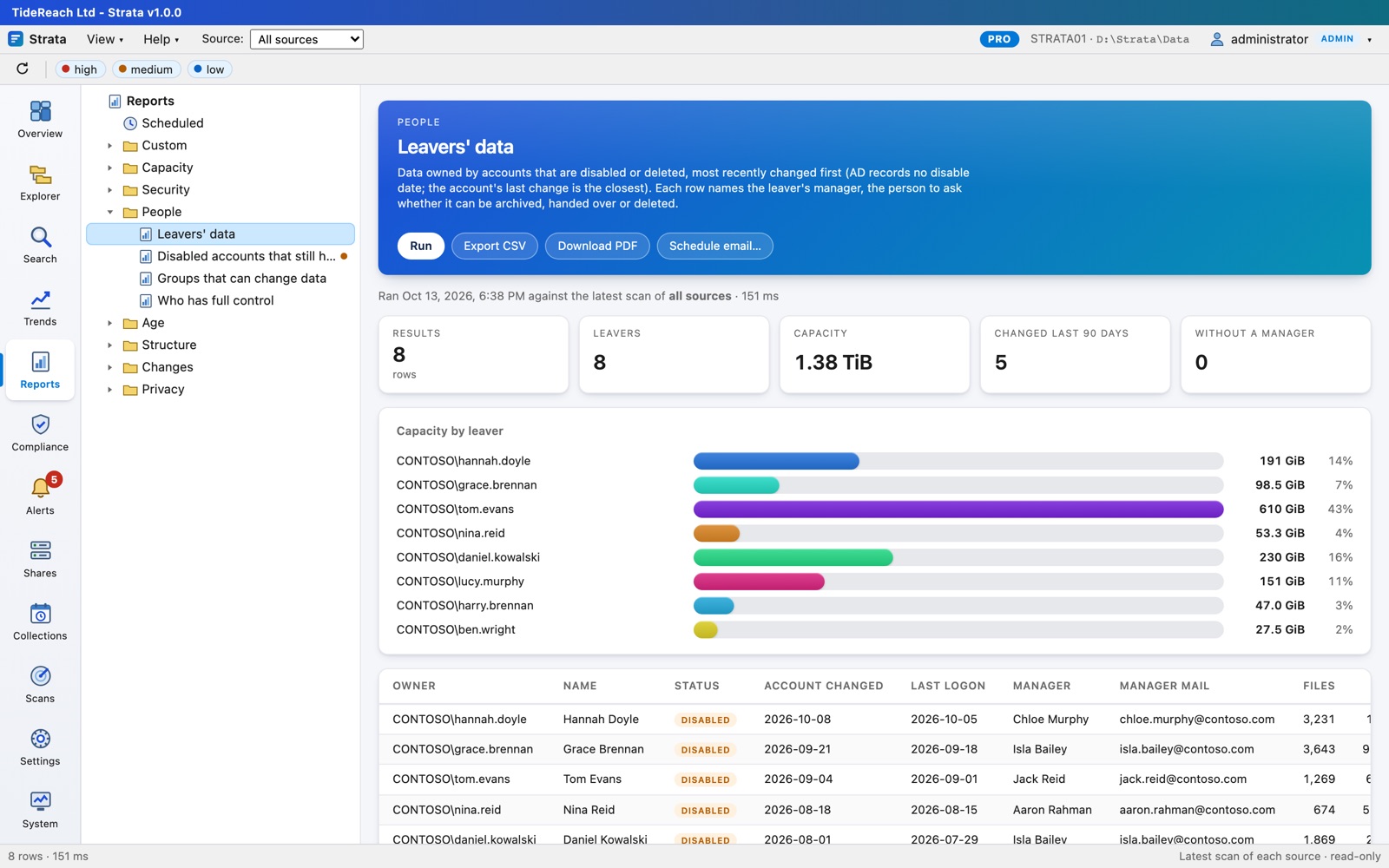
Leavers' data (Pro): files owned by disabled or deleted accounts, most recently changed first, with each leaver's manager: the person to ask whether it can be archived, handed over or deleted.
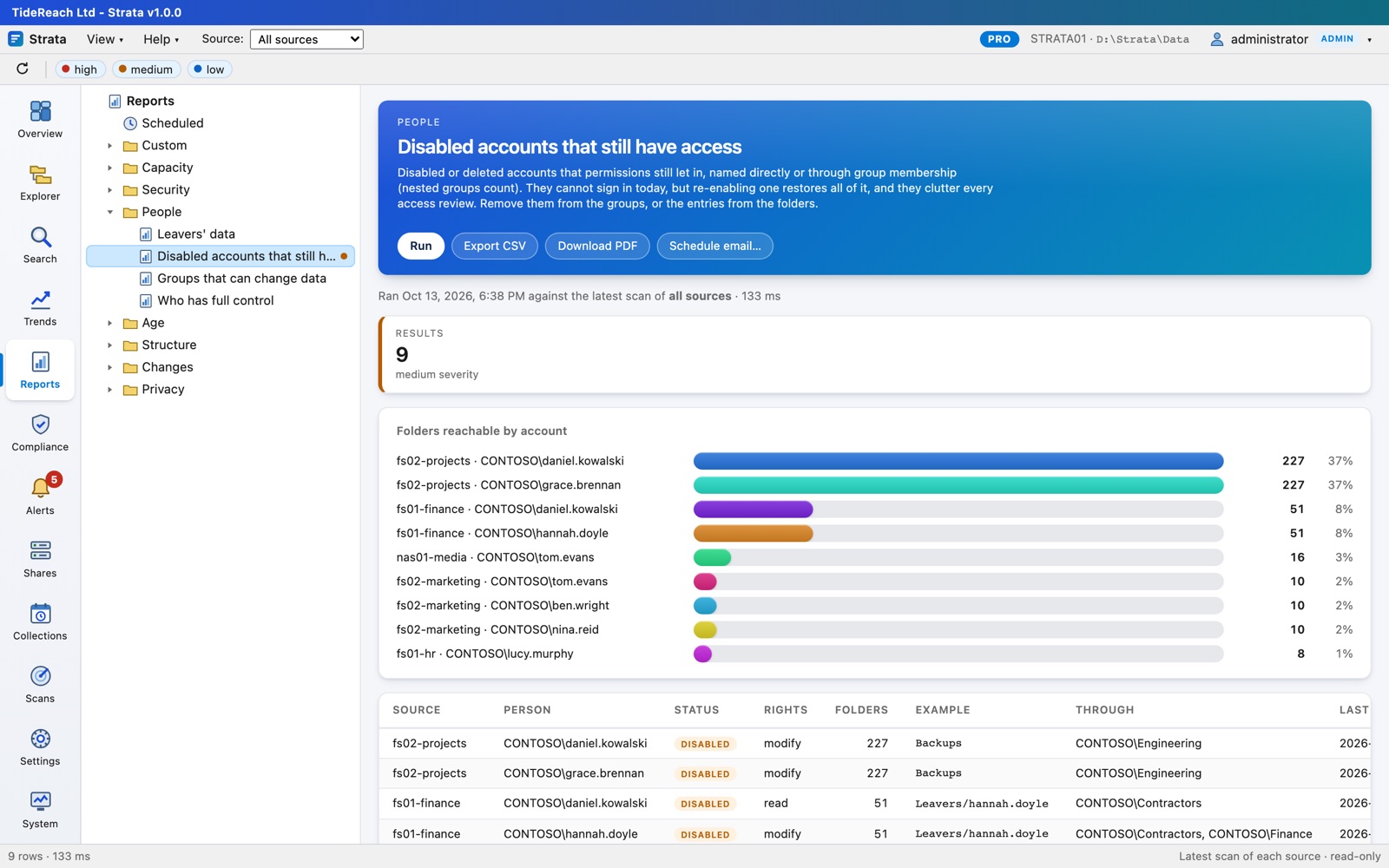
Disabled accounts that still have access (Pro): through any group, however nested, with how many folders each can reach.
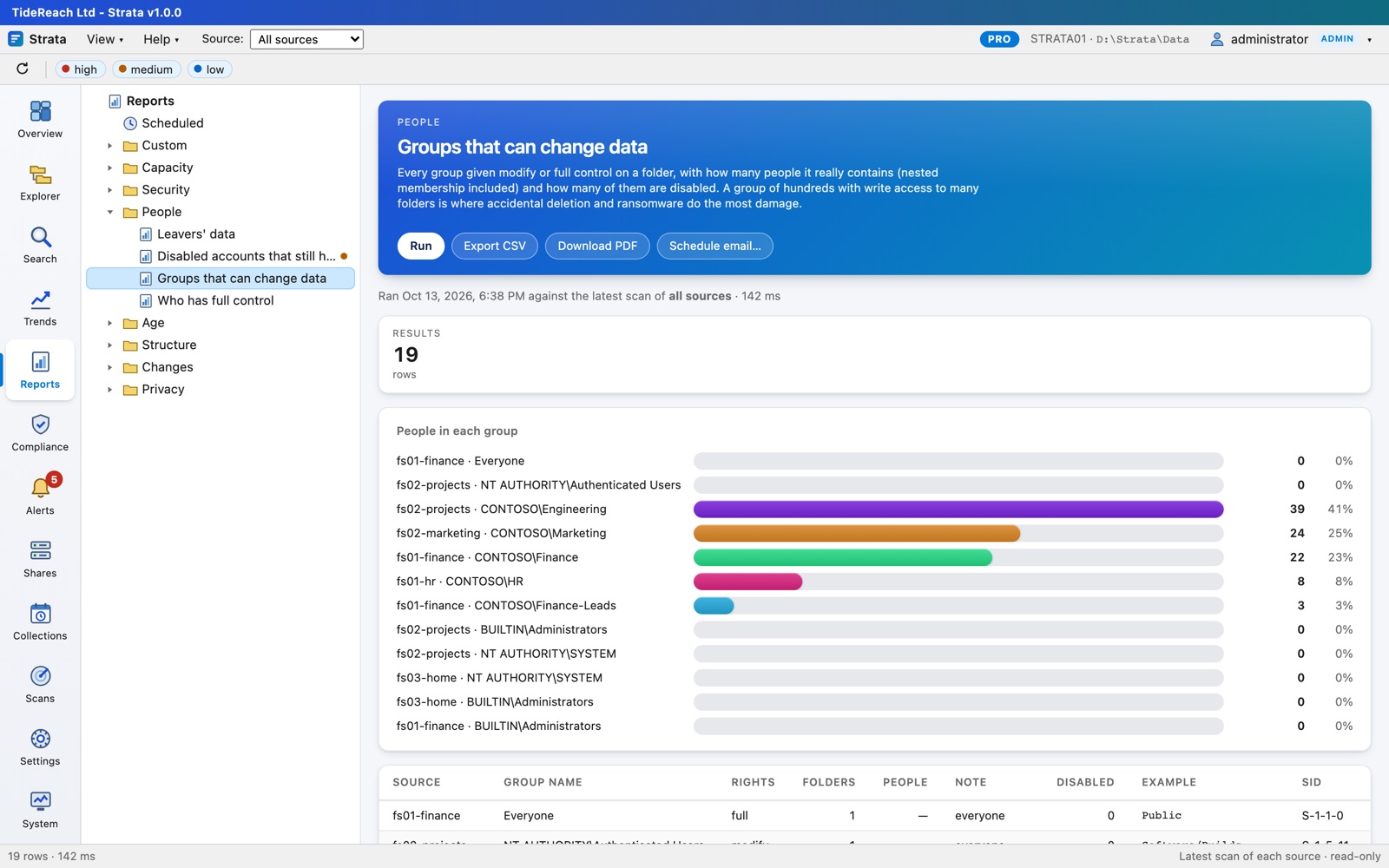
Groups that can change data (Pro): every group with modify or full control, how many people it really holds, and how many of them are disabled.
Custom reports
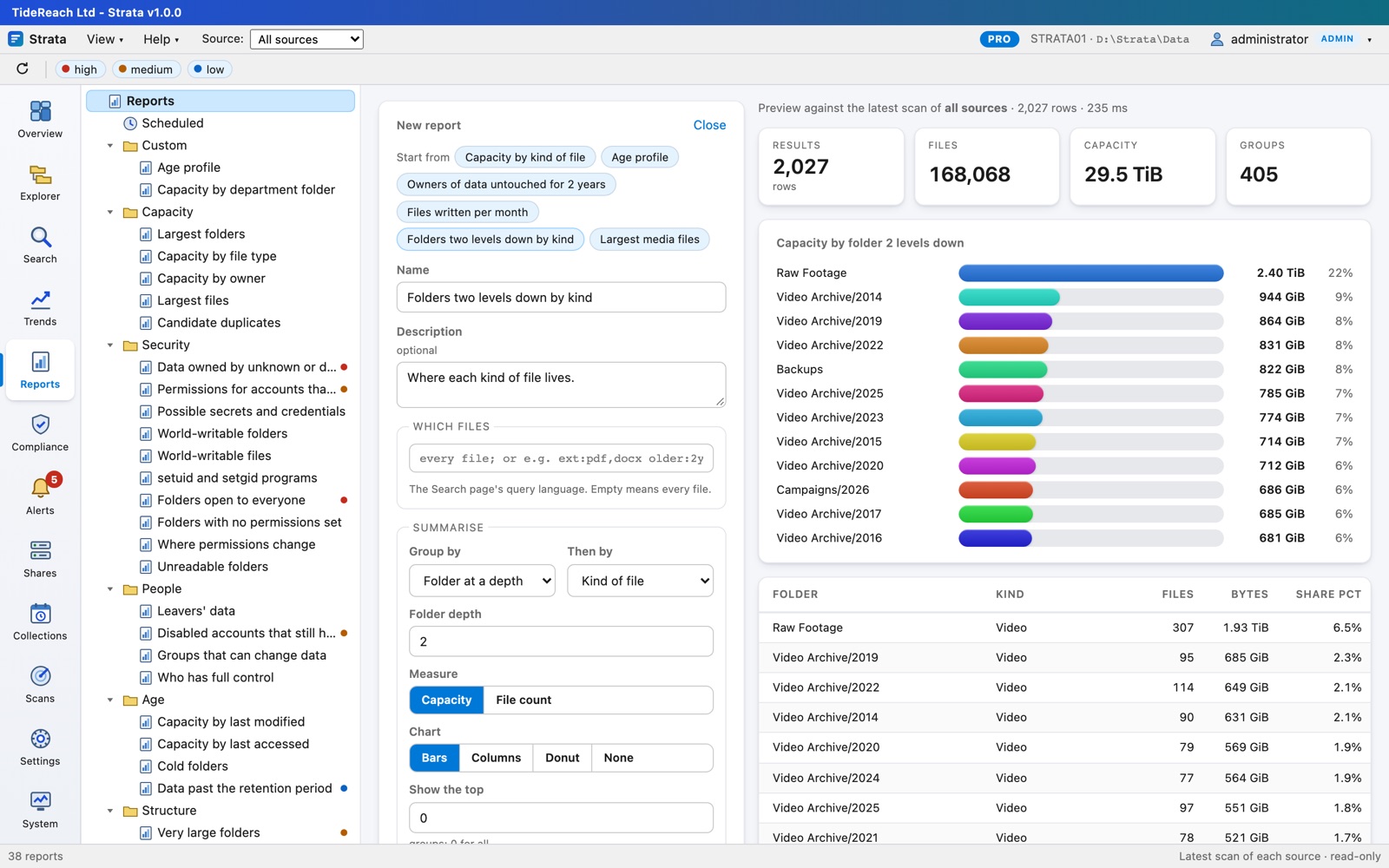
New report… builds your own without SQL: which files (any search), grouped by up to two of kind, extension, owner, folder, source, age, month or size band, measured by capacity or count, drawn as bars, columns or a donut. A live preview updates as you go.
PDF and scheduled email reports
Download PDF on any report (and on the Overview) draws it as a PDF on the server: headline figures, the chart, and the first 200 rows, ready to attach to a ticket or an audit file.
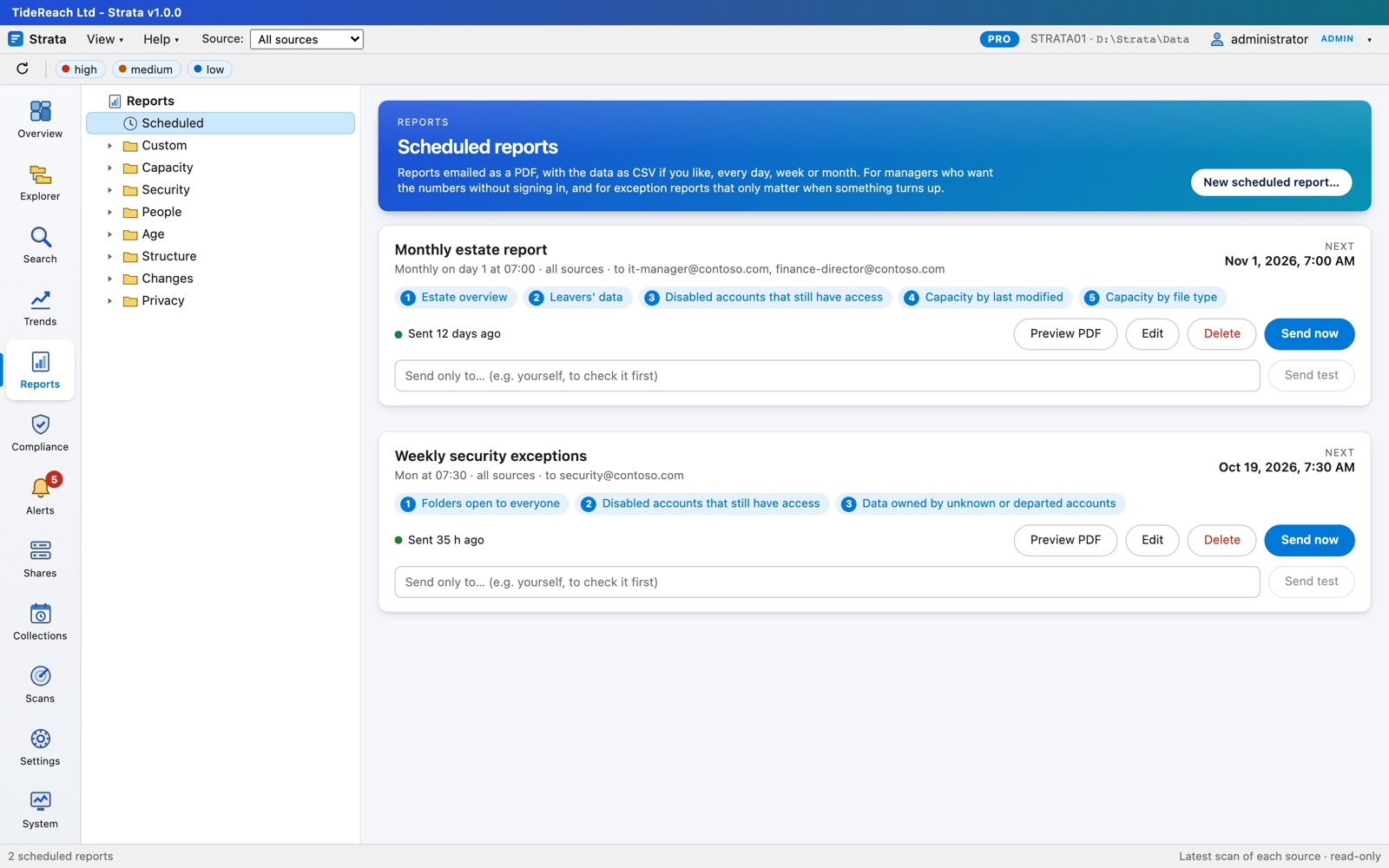
Reports, Scheduled emails reports on a schedule (Standard and Pro). A scheduled report is one email with any number of reports in the order you choose, for all sources or one: typically the estate overview first, then the exceptions that need someone to act. It sends daily, weekly or monthly at a set time, or only when you press Send now. The email lists each report's headline with a link into Strata, and attaches the PDF and, if you like, each report's data as CSV. Don't send when every report is empty suits exception reports such as leavers' data. Preview PDF shows exactly what will be sent, and Send test sends it only to you first. Each schedule keeps its last 20 sends, and a failed send raises an alert.
Email is set up once in Settings, Email: an SMTP server or relay, or Microsoft 365 through an app registration where SMTP sign-in is switched off. Also on Schedule email… on any report.
Compliance
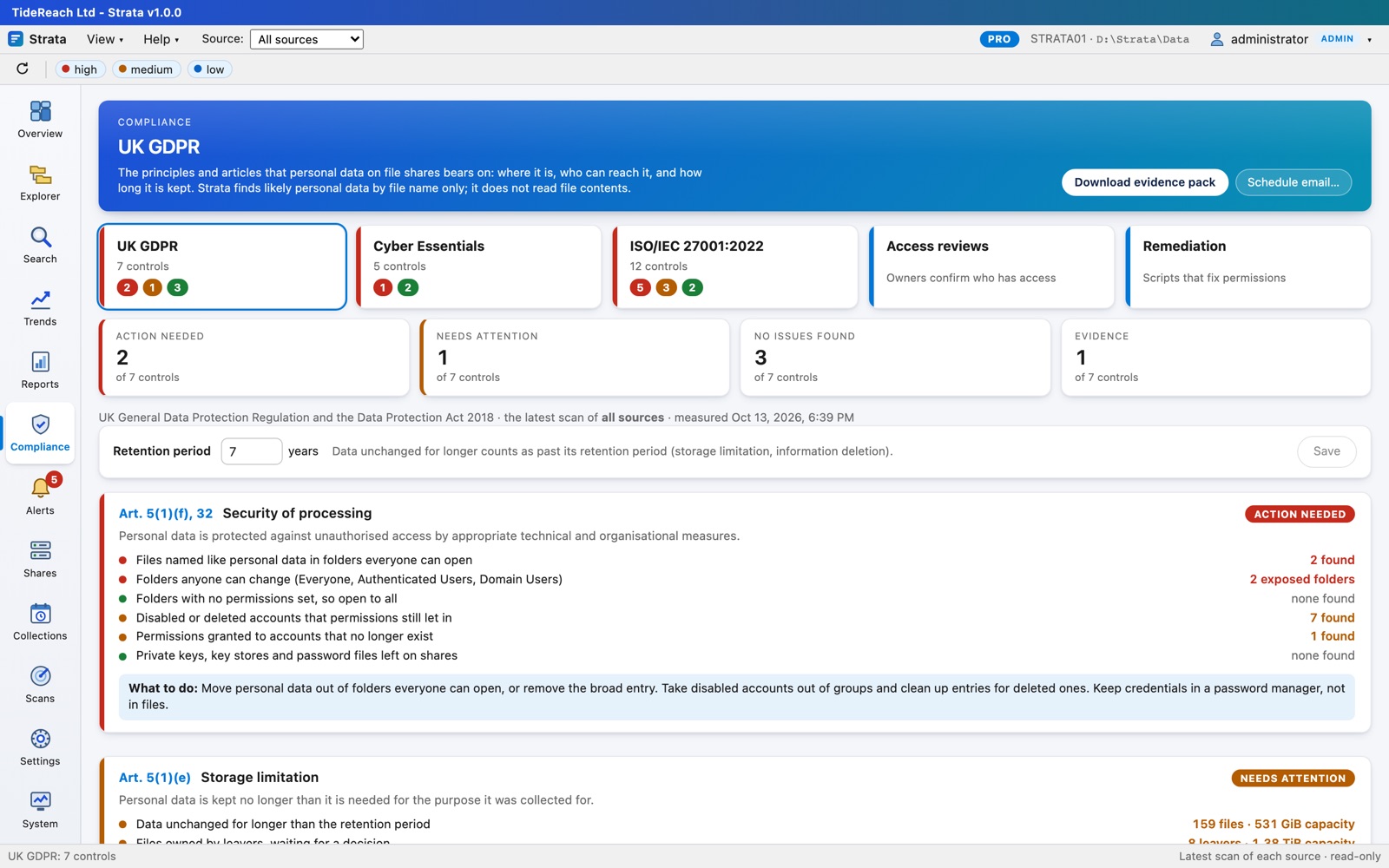
Compliance (Pro) measures your file shares against the controls of UK GDPR, Cyber Essentials and ISO/IEC 27001:2022. For each control it shows what the control asks for, what Strata checked in the latest scan, and a status:
| Status | Means |
|---|---|
| Action needed | A high-severity finding, such as personal data in a folder everyone can open |
| Needs attention | Other findings, such as disabled accounts that still have access |
| No issues found | Every check ran and found nothing |
| Not fully assessed | Strata lacked the data for a check: connect Active Directory, or collect permissions |
| Evidence | Nothing to pass or fail; the figures an auditor will ask for |
| Outside Strata | Nothing on file shares bears on it (firewalls, patching): evidence it from elsewhere |
Every check links to the report behind it, and controls with findings say what to do. Download evidence pack produces a PDF with the summary, every control in detail, and the reports with findings as an appendix. Schedule email… sends it monthly, to the DPO or the auditor.
Personal data is found by file name only (passports, payslips, P60s, contracts, medical and recruitment records); Strata never opens files. Two Privacy reports show where it is and which of it everyone can open. Retention period (default 7 years) sets when unchanged data counts as kept too long; it drives the Data past the retention period report.
Strata gives evidence; it does not certify compliance. Control wording is paraphrased: refer to the standards for the exact requirements.
Access reviews
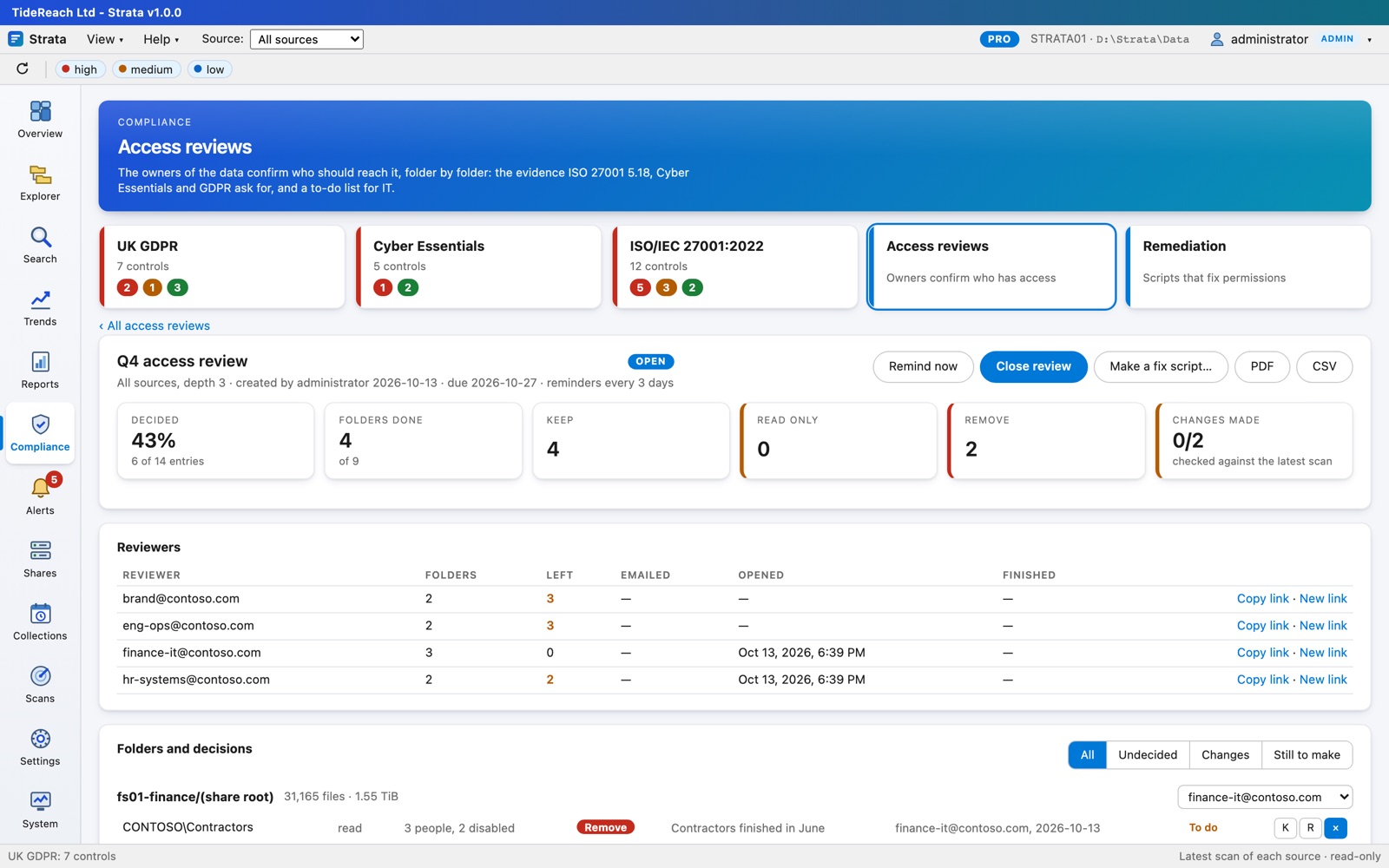
Compliance, Access reviews (Pro) asks the people who own the data to confirm who may reach it: the periodic review ISO/IEC 27001 control 5.18, Cyber Essentials user access control and UK GDPR expect.
- New access review…: choose the scope (a source or all, how many levels down, optionally one folder and everything under it). Strata picks every share root and every folder where access differs from the folder above; built-in accounts such as SYSTEM and Administrators are left out. The preview lists each folder and its reviewer.
- Reviewers are each collection's contact (Collections, Edit, Contact), or one person for everything, with a fallback for collections without a contact. Change any folder's reviewer in the preview, or later.
- The review is created as a draft. Start and email reviewers sends each reviewer a personal link. Email must be set up, including the console address, and reviewers must be able to reach that address.
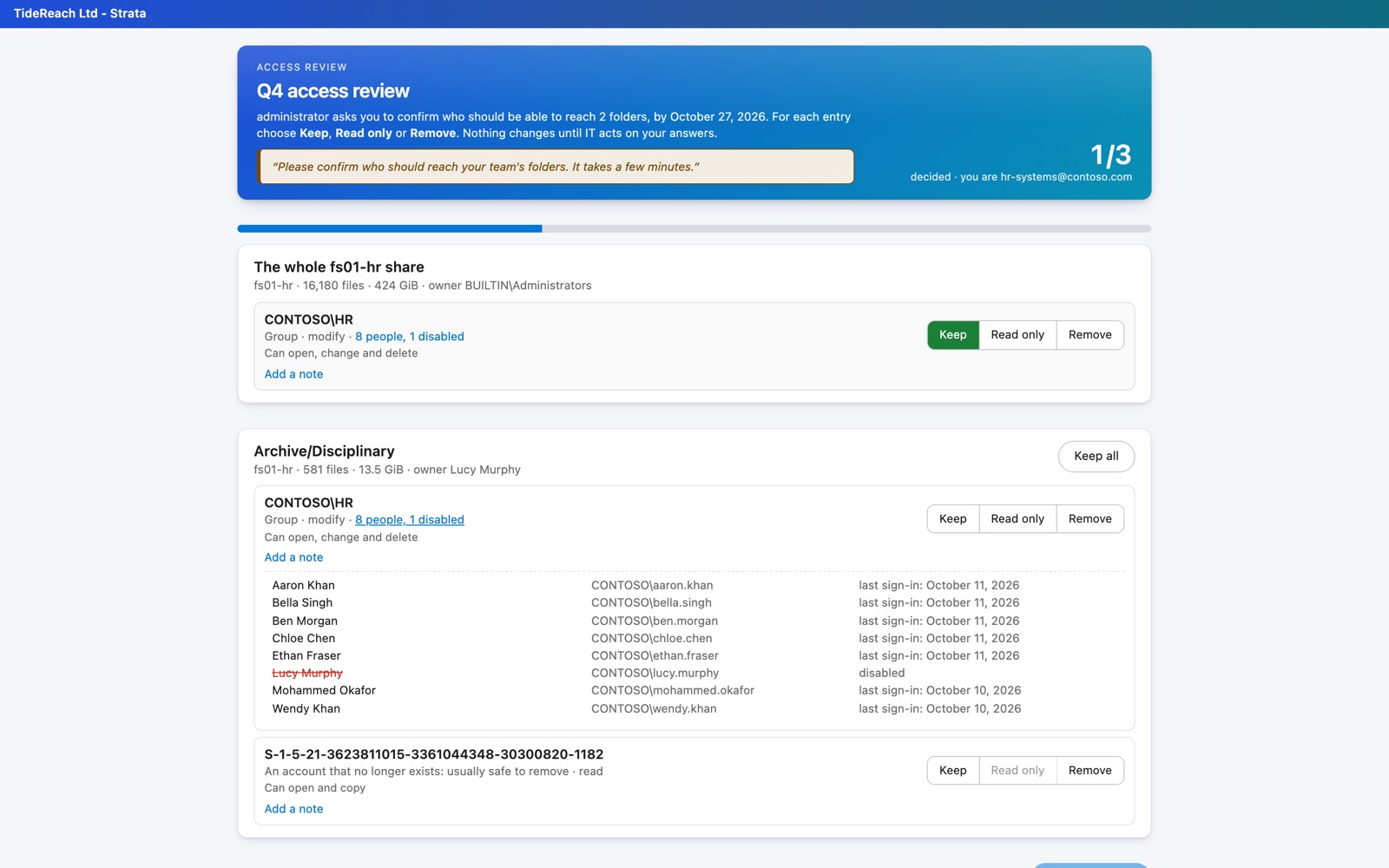
Reviewers need no Strata account. Their link shows only their folders: who can reach each, with how many people each group really holds (nested groups included) and who is disabled, and three choices for every entry: Keep, Read only or Remove, with an optional note. Finish the review tells you they are done. Links can be copied again, or replaced (the old one stops working), from the review's Reviewers table.
Strata sends reminders every few days while decisions are outstanding, raises an alert when a review passes its due date, and records everything (every decision, who made it, when and from which address) in the audit trail.
Strata changes nothing by itself. Changes and Still to make list what reviewers asked for; they are made through a remediation plan (below), and after the next scan each shows Done or stays To do. Close review ends it; the PDF (outcome, every decision, audit trail) and CSV are the record. The compliance packs count a review closed in the last twelve months. Make a fix script… turns the review's decisions into a remediation plan.
Remediation
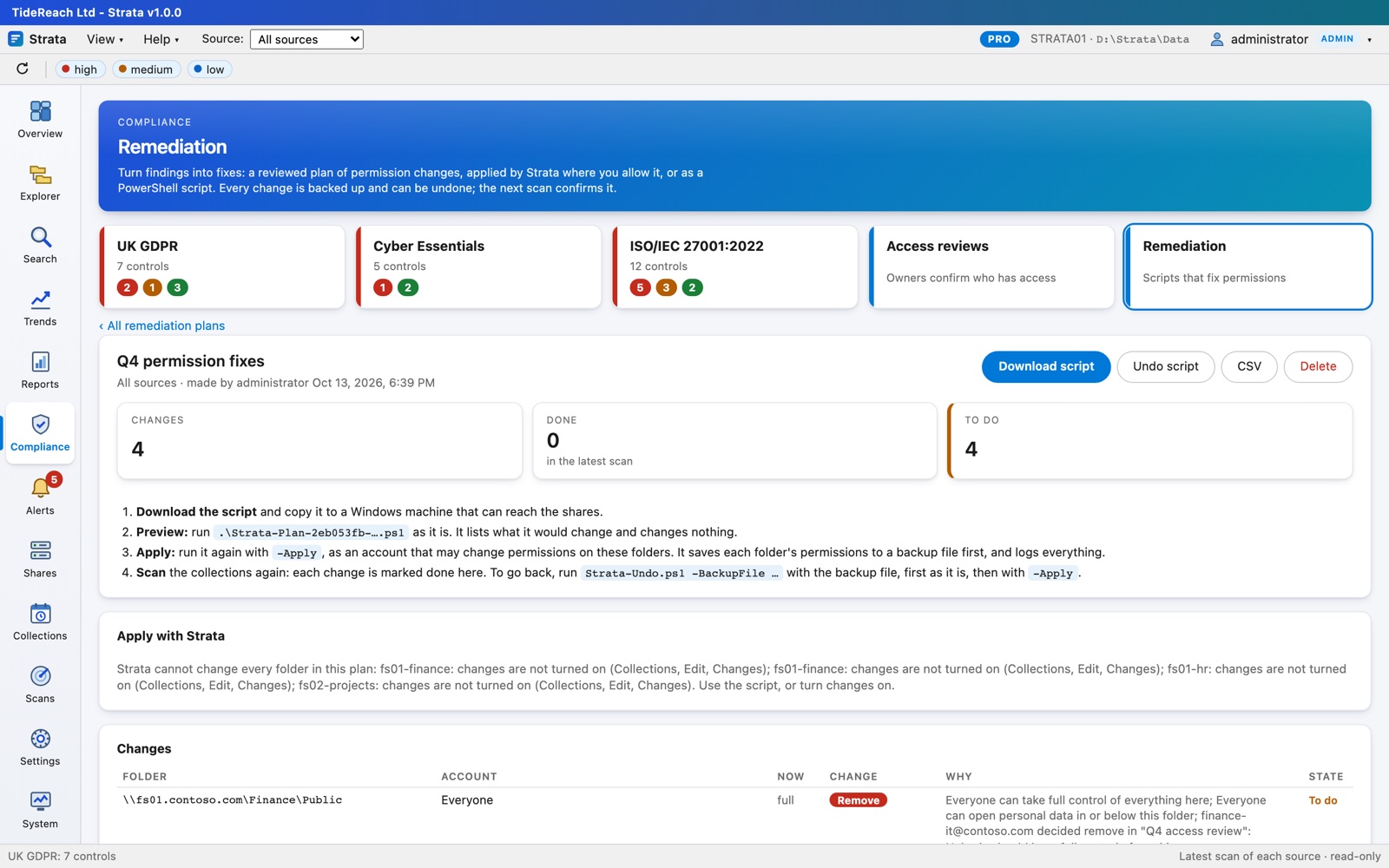
Compliance, Remediation (Pro) turns findings into fixes. New remediation plan… offers:
- Everyone and Domain Users can change data: make those entries read only, or remove them.
- Everyone can open personal data: remove broad groups from folders holding files named like personal data.
- Accounts that no longer exist: remove their entries (needs Active Directory, so a deleted account can be told from one Strata cannot name).
- Disabled accounts named directly: remove them.
- An access review's decisions: every remove and read-only decision the owners made.
Strata lists every access entry it would change, with the reason; untick anything that should stay. Changes are made where an entry is set, so folders below that inherit it follow.
Each plan can then be applied in one of two ways.
Apply with Strata (SMB shares where changes are turned on: Collections, Edit, Changes, with an account kept for changes):
- Dry run: Strata reads everything the plan touches, including every folder and file below each changed folder, and counts what would change. Nothing is changed. A change is refused if the account is also given access by a folder above, where removing it here would not take the access away; fix that folder instead.
- Ask for approval: a second administrator reviews the plan and the dry run and chooses Approve and apply (Settings, Permission changes can switch approval off where there is only one administrator).
- Strata backs up each access list, then changes it: on the planned folder, and on the copies every folder and file below it inherited, exactly as Windows would (it stops at folders that do not inherit, and below folders that grant the same account themselves). Progress shows as it runs; it can be cancelled.
- The changed collections are scanned again, and each change shows Done. Undo this change puts every access list back exactly as it was.
Download script gives the same plan as a PowerShell script (Windows PowerShell 5.1 or PowerShell 7) for someone who may change permissions on those folders, where Strata should not:
- Run it as it is: it only reports what it would change.
- Run it with
-Apply: it saves each folder's access list to a backup file, then makes the changes, skipping any already made, and logs everything. Only access lists change, never owners, auditing or files. - Scan the collections again: each change shows Done in the plan.
Undo script restores folders from the backup file: Strata-Undo.ps1 -BackupFile <file>, first as it is, then with -Apply. Sources scanned through NFS or a Linux path are listed but cannot be scripted; change those on the file server itself.
Trends
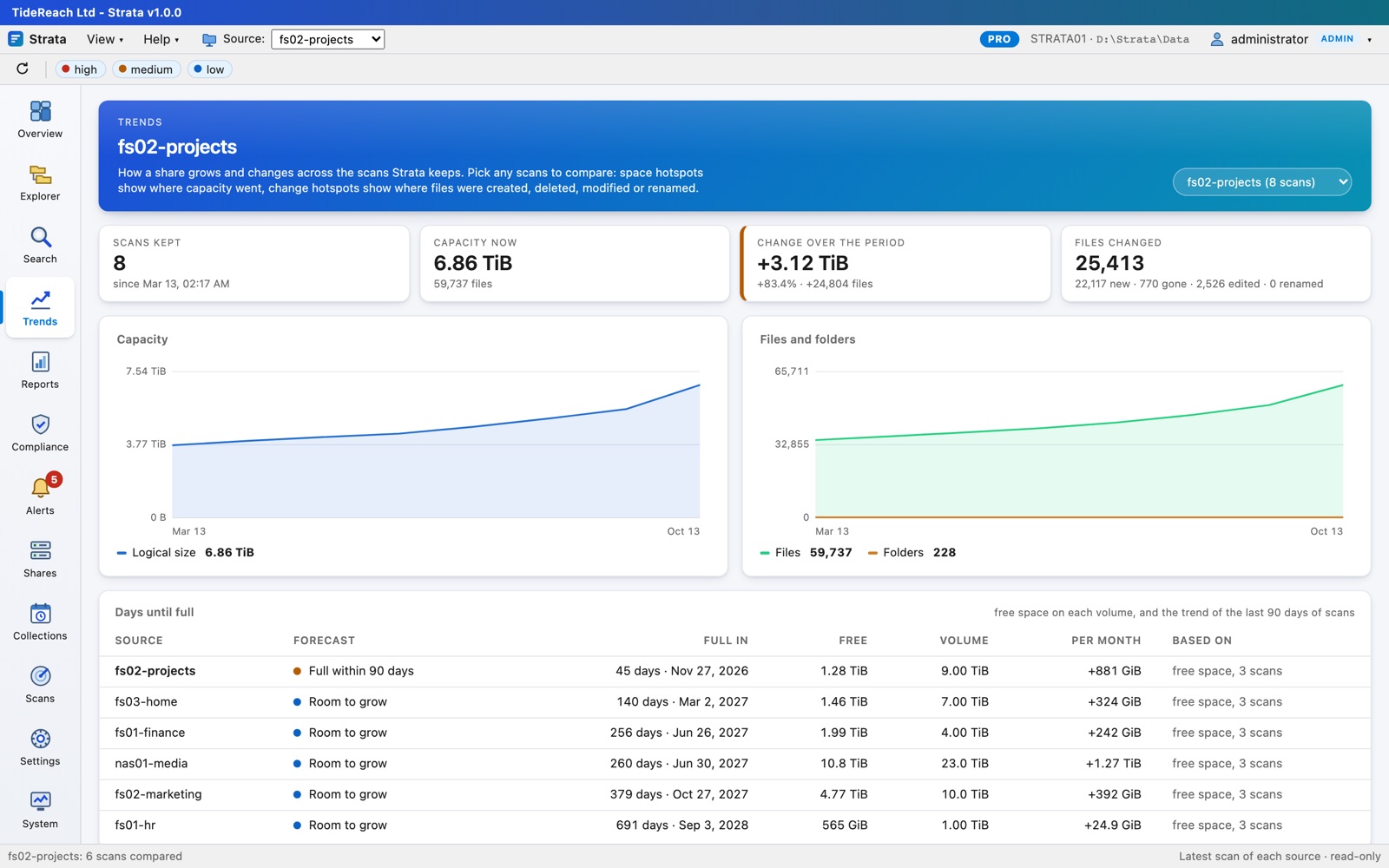
How a source grows and changes across the scans Strata keeps. Pick any scans to compare: space hotspots show where capacity went, change hotspots where files were created, deleted, modified or renamed.
Days until full forecasts when each volume runs out of space. Every scan records the size and free space of the volume the share lives on; Strata draws a straight line through the last 90 days of scans (180 days, or everything kept, when there are fewer than three) and works out when free space reaches zero. Because it follows free space, it counts everything on the volume, not just the share Strata scans. For a source that does not report its volume (some NFS exports), it follows the growth of the data itself instead. The Overview shows the volume due to fill first, and the overview PDF includes it.
| Forecast | Meaning |
|---|---|
| Full within 30 days | Critical: add or free space now. Raises a critical alert. |
| Full within 90 days | Warning: plan it. Raises a warning alert, at most once a week per source. |
| Room to grow | More than 90 days at the current rate. |
| Free space growing | The volume is freeing space. |
| Not enough history | A forecast needs two scans at least a day apart. |
The forecast needs Standard or Pro, and scans on a regular schedule: a line through two scans a week apart is only a rough guide.
Alerts
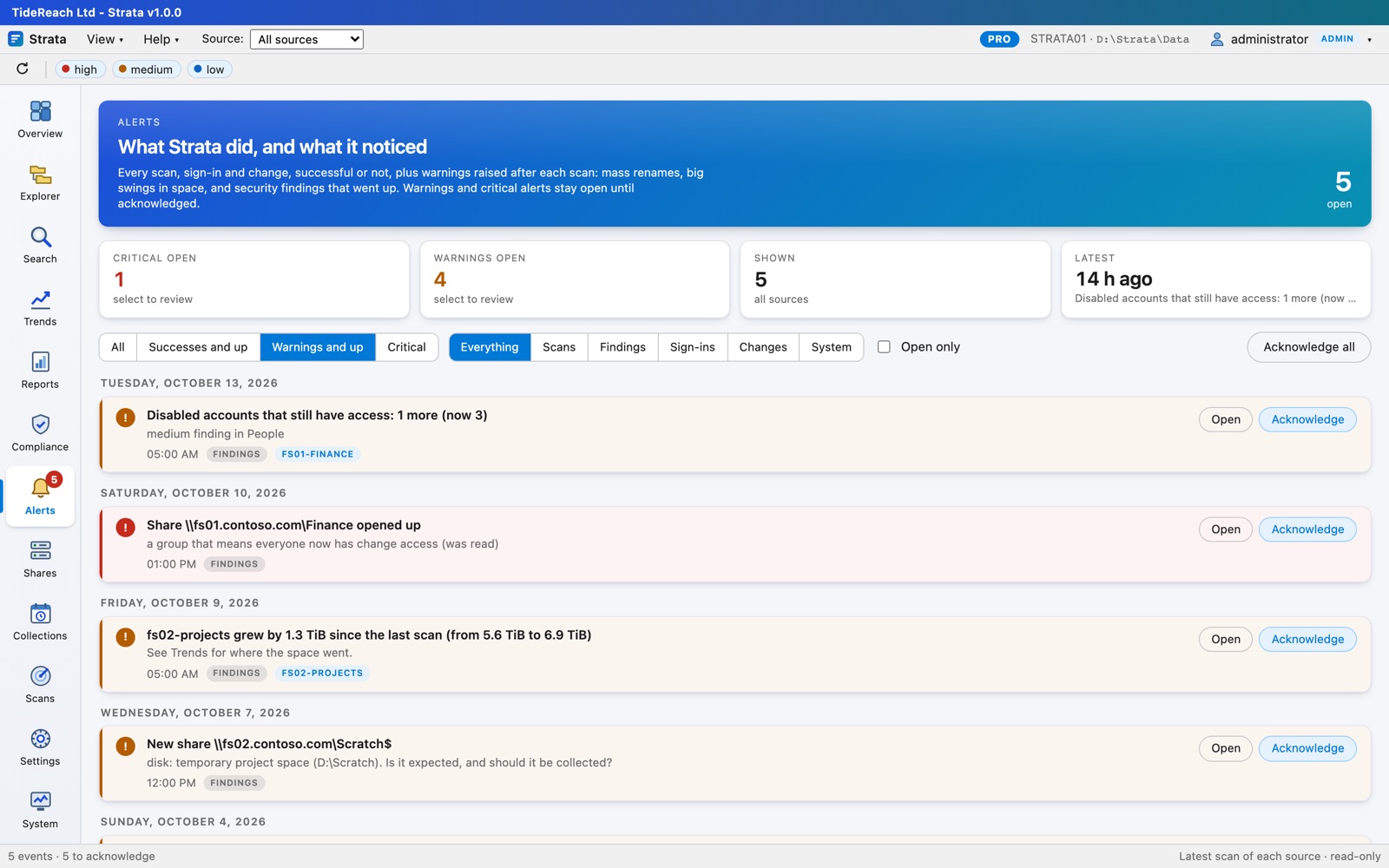
Every scan, sign-in and change, successful or not, plus what Strata notices after each scan: mass renames to one extension (the ransomware pattern), big swings in capacity, findings that went up, new shares, shares opened to everyone, and storage or licence problems. Warnings stay open until acknowledged; Settings, Alert notifications sends them to Teams, Slack or any webhook.
Shares
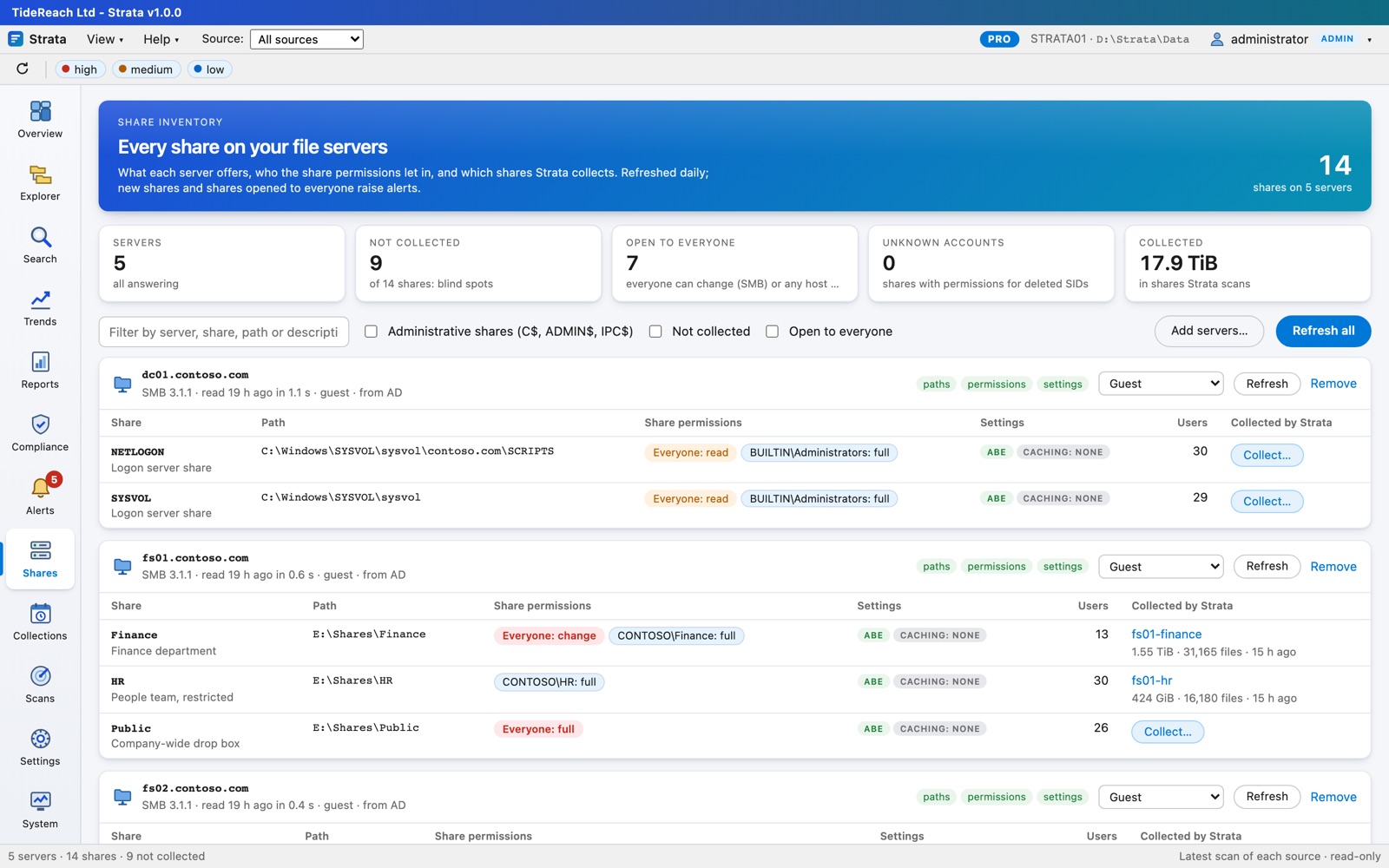
Every SMB share and NFS export on your file servers, found by name or from Active Directory, with paths, share permissions, access-based enumeration and encryption, connected users, and which collection scans each one. Collect… starts collecting any share not yet covered.
Collections and Scans
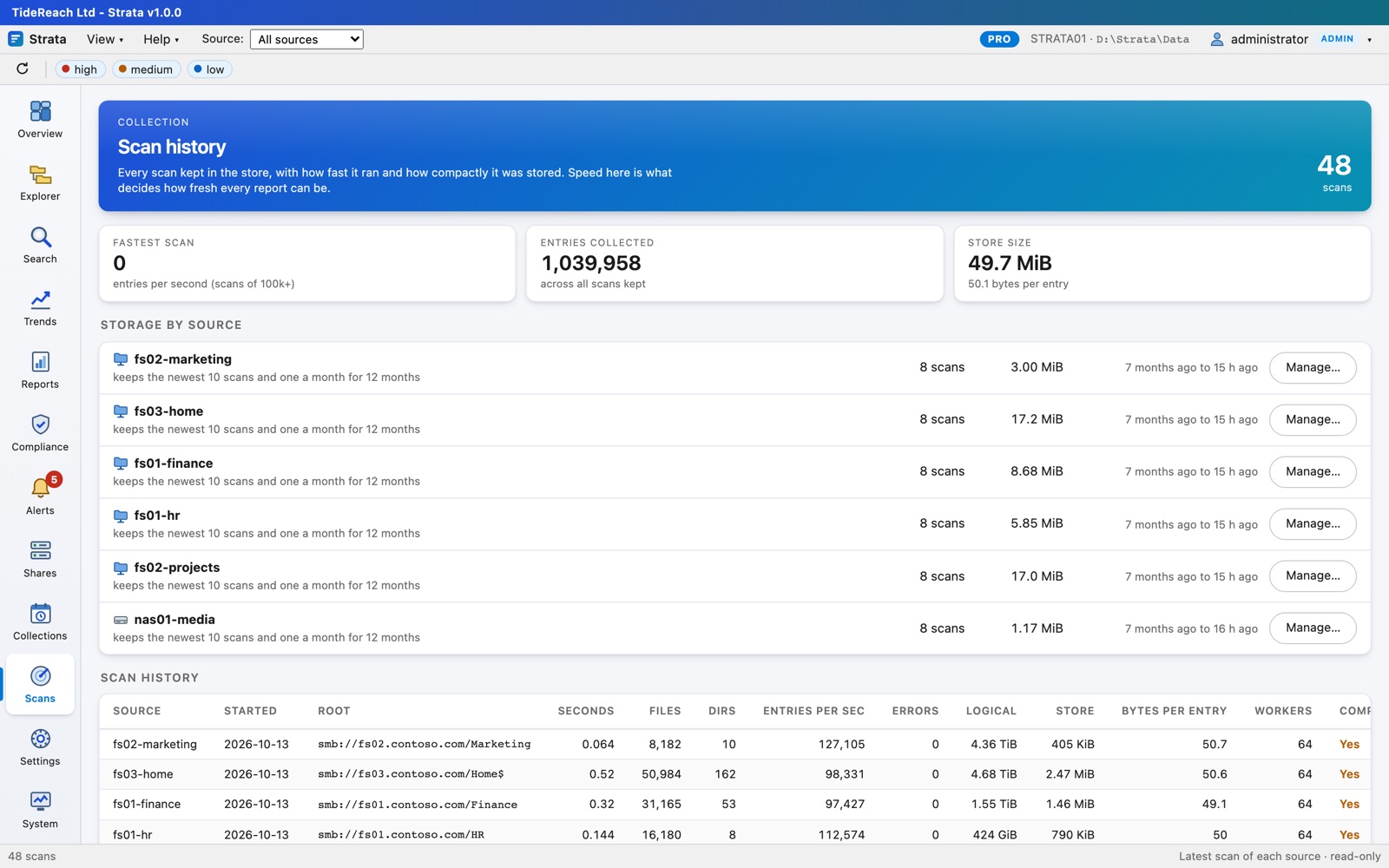
Collections set what to scan, with which account and when; Scans shows every scan kept, how fast it ran and how much space it takes, and deletes old ones. Retention per collection keeps the newest scans, every scan from recent days, and one a month for long-term trends.
System
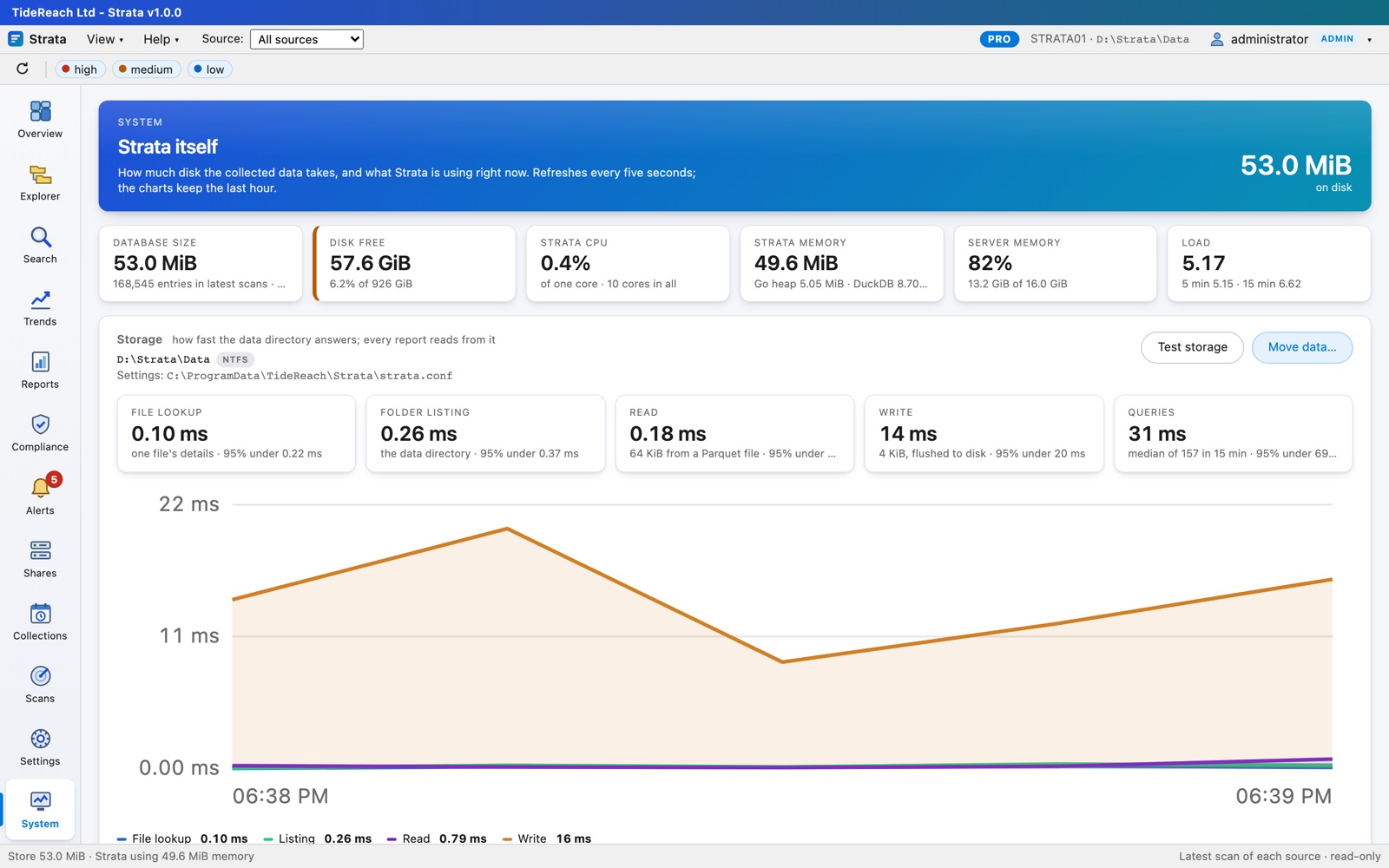
Where Strata keeps its data and how fast that storage answers (with a benchmark and alerts when it is slow), database size, CPU and memory, and Move data… to relocate everything while Strata runs.
Editions
| Free | Standard | Pro | |
|---|---|---|---|
| Overview, Explorer, Search; capacity, age, structure and change reports | ✓ | ✓ | ✓ |
| Capacity analysed | 2 TB, 3 sources | by licence | by licence |
| Scheduled scans, trends and days-until-full forecasts, alerts to webhooks, saved searches, custom reports, share inventory, scheduled email reports | ✓ | ✓ | |
| Permissions, people, leavers, disabled accounts with access, share permissions | ✓ | ||
| Compliance packs (UK GDPR, Cyber Essentials, ISO 27001), access reviews, remediation (applied with approval, or as scripts), personal data reports | ✓ |