 Strata by TideReach Ltd
Strata Installation Guide
Strata runs on one server and scans your file servers over the network: Windows and NAS shares directly over SMB, and NFS exports through a read-only mount on the Strata server. Nothing is installed on the file servers themselves, and nothing leaves your network.
This guide covers requirements, installing on Windows or Linux, first-run setup, HTTPS, connecting Active Directory, email, your first scan, and licensing. For using Strata day to day, see the User Guide.
1. Requirements
| Operating system | Windows Server 2016 or later, or Windows 10/11 (x64). Linux x64 or arm64 with glibc 2.28 or later: RHEL, AlmaLinux or Rocky 8+, Ubuntu 20.04+, Debian 11+. |
| CPU and memory | 2 cores and 4 GB for up to about 20 million files; 4 cores and 8 GB beyond that. Scans are network-bound, not CPU-bound. |
| Disk for Strata's data | Roughly 60-120 bytes per file per scan kept. 10 million files with 12 scans kept is about 10 GB. A local disk or SSD is best: every report reads from it. |
| Network | SMB (TCP 445) from the Strata server to each Windows or NAS file server; NFS (TCP 111 and 2049, plus mountd) to NFS servers, for mounting their exports and for the share inventory; LDAPS (636) or LDAP with StartTLS (389) to a domain controller if you connect Active Directory. Admins reach Strata's console on TCP 8443 (HTTPS). |
| Browsers | Current Edge, Chrome, Firefox or Safari. |
A scanning account. For SMB, create a domain account for Strata (for example svc-strata). It needs to read folder listings and security descriptors: membership of Backup Operators on each file server is the simplest way to give it that everywhere, including folders whose permissions exclude everyone else. Strata only ever reads.
2. Installing on Windows
Download Strata-<version>.msi from strata.tidereach.uk and run it, or install silently:
msiexec /i Strata-<version>.msi /qn
msiexec /i Strata-<version>.msi DATADIR="D:\Strata" PORT=443 /qn
The installer:
- installs
strata.exetoC:\Program Files\TideReach\Strata; - registers the Strata service (LocalSystem, automatic start, restarts on failure);
- opens the console's port (default 8443) in Windows Firewall;
- adds two Start menu entries: Strata (opens the console) and Strata setup token;
- writes
%ProgramData%\TideReach\Strata\strata.confand makes that folder and the data folder private to SYSTEM and Administrators (they hold the key that protects stored passwords).
Without DATADIR, data is kept in %ProgramData%\TideReach\Strata\Data, and first-run setup offers to put it elsewhere. The service logs to %ProgramData%\TideReach\Strata\strata.log.
3. Installing on Linux
Install the package for your distribution:
sudo apt install ./strata_<version>-1_amd64.deb        # Debian, Ubuntu
sudo dnf install ./strata-<version>-1.x86_64.rpm     # RHEL, AlmaLinux, Rocky, Fedora
The package installs /usr/bin/strata, creates the strata system user, writes /etc/strata/strata.conf on first install (never on upgrade), creates the data directory and starts the strata systemd service. To choose the data directory and port at install time:
sudo STRATA_DATA_DIR=/srv/strata STRATA_LISTEN=0.0.0.0:443 apt install ./strata_<version>-1_amd64.deb
The service runs as strata with the CAP_DAC_READ_SEARCH capability, so it can read any local path it is asked to scan without running as root (and CAP_NET_BIND_SERVICE, so it can listen on 443 if you choose).
Open the port if the server runs a firewall. On RHEL, AlmaLinux and Rocky (firewalld):
sudo firewall-cmd --permanent --add-port=8443/tcp && sudo firewall-cmd --reload
On Ubuntu with ufw enabled: sudo ufw allow 8443/tcp. The installer prints the console address and where the setup token is; if your package tool hid that, sudo strata setup-token shows it.
For other distributions, unpack strata-<version>-linux-<arch>.tar.gz and run sudo ./install.sh; it asks where to keep the data when run interactively, or takes -data and -addr.
4. First-run setup
Open https://<server>:8443. The console uses a self-signed certificate until you install your own (section 5), so accept the browser's warning once.
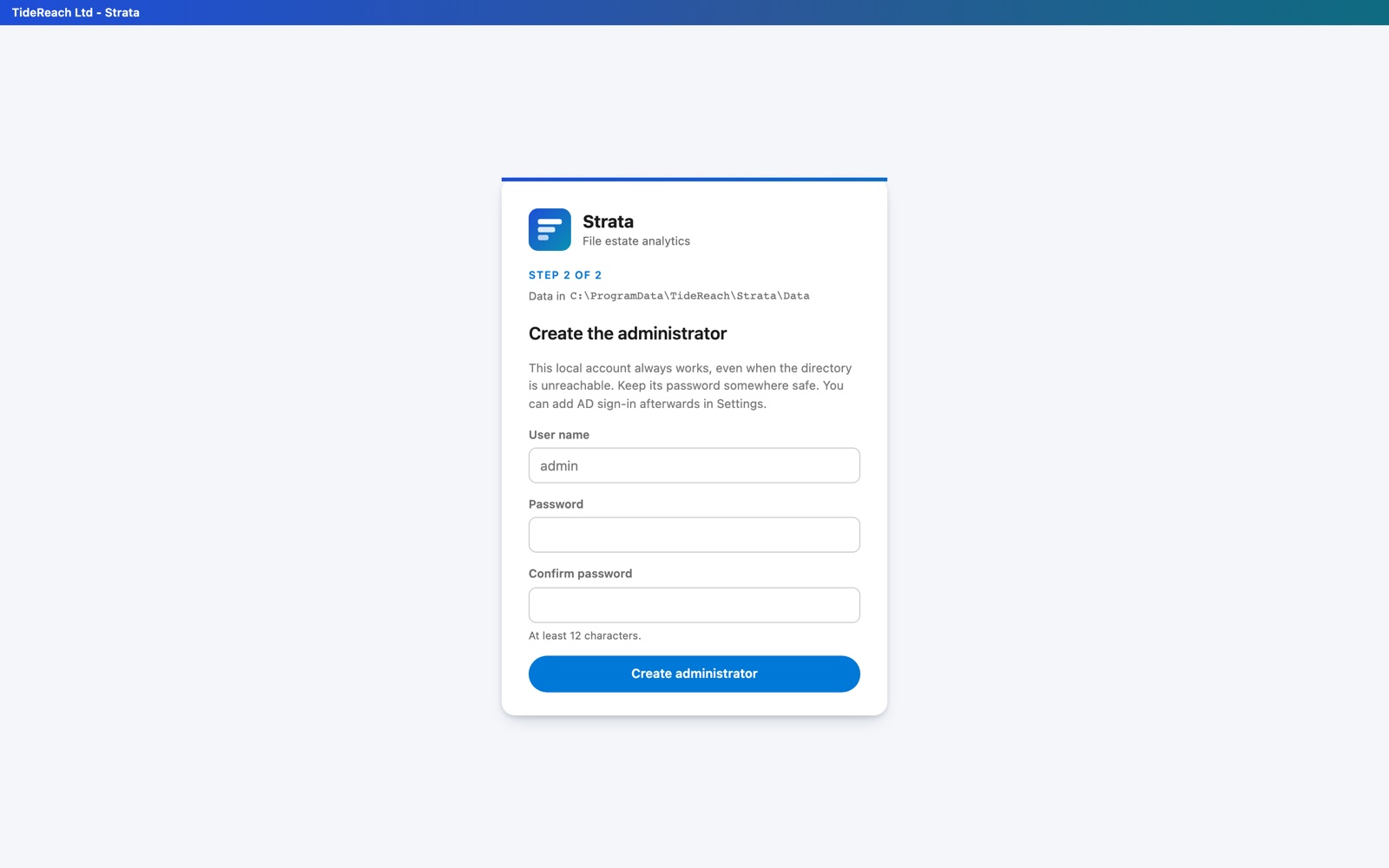
From another computer, Strata first asks for the setup token, which proves you look after the server:
- Windows: Start menu, Strata setup token (it asks to run as administrator; after setup it says setup is complete);
- Linux:
sudo strata setup-token.
A browser on the server itself does not need it. Then two steps:
- Where to keep the data. The current folder, its free space and how fast it answers. To use another folder, type it and choose Check: Strata confirms it is usable and benchmarks it against the current one, then moves there. You can also move the data later from System, Storage.
- Create the administrator. A local account that always works, even when the directory is unreachable. Keep its password safe.
The token is deleted once the administrator exists.
5. HTTPS certificate
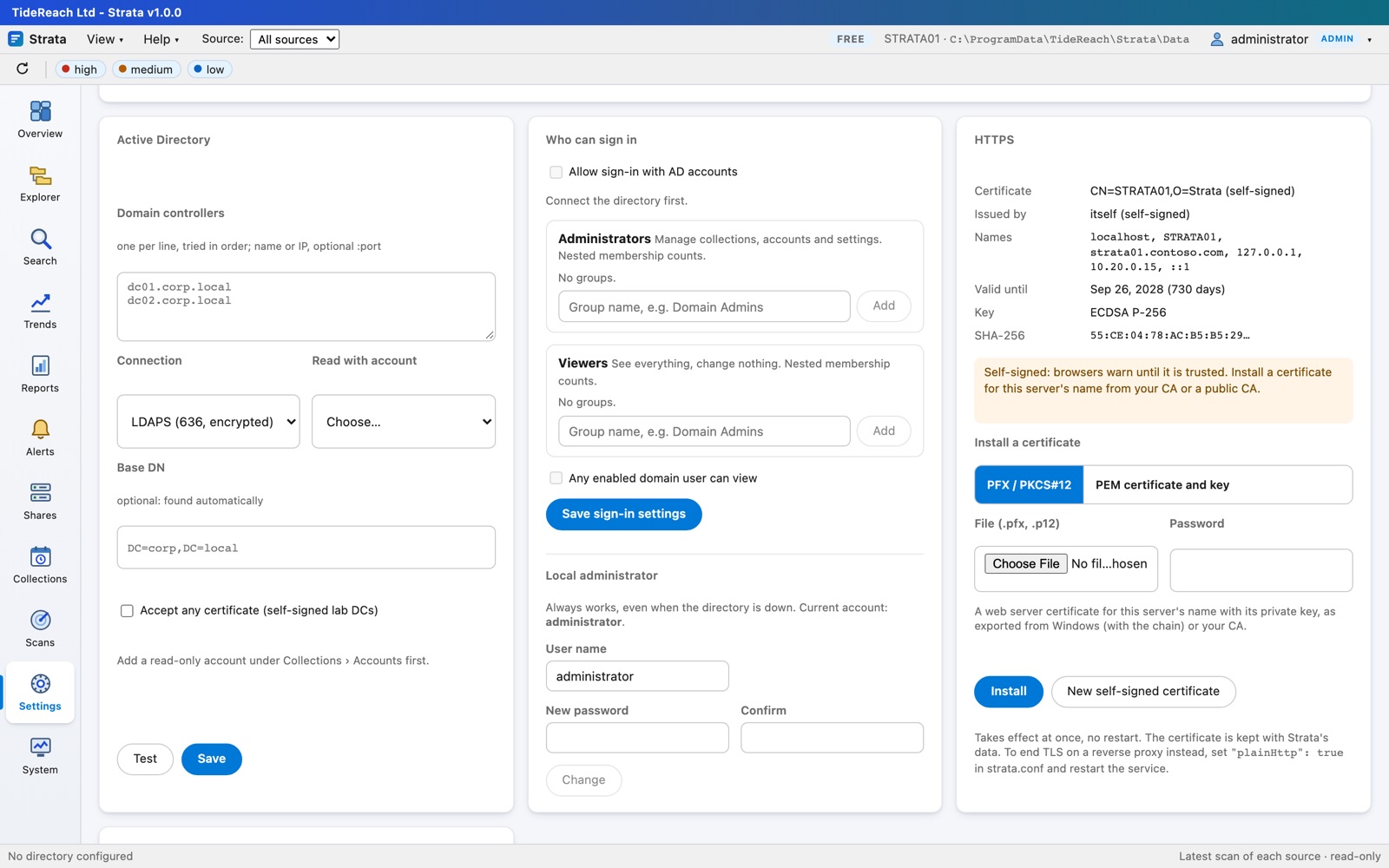
In Settings, HTTPS, install a certificate for the server's name from your enterprise CA or a public CA:
- PFX / PKCS#12: a Windows export with the private key (and the chain), and its password;
- PEM: the certificate chain and the unencrypted private key.
It takes effect at once, with no restart, and moves with the data. Strata warns 30 days before it expires. To end TLS at a reverse proxy instead, set "plainHttp": true in strata.conf and restart the service.
6. Connecting Active Directory
Strata names owners and permissions through AD (including disabled and deleted accounts), expands nested group membership, reads managers for leavers' data, and lets people sign in with AD accounts.
- Collections, Accounts: add the scanning account (it can read the directory too).
- Settings, Active Directory: enter your domain controllers, choose LDAPS (or StartTLS), pick the account, Test, then Save.
- Settings, Who can sign in: allow AD sign-in and choose the groups whose members are administrators and viewers (nested membership counts).
7. Email, for scheduled reports
Settings, Email sets how Strata sends scheduled reports:
- SMTP: your mail server, an internal relay, or a provider's submission port. STARTTLS on 587 is the usual choice; TLS on 465 and unencrypted relays on 25 also work. Leave the user name empty for a relay that accepts the Strata server without signing in.
- Microsoft 365: where SMTP sign-in is switched off. In Entra ID, register an application, add the Microsoft Graph Mail.Send application permission, grant admin consent and create a client secret. Enter the tenant, the application (client) ID and the secret; the From address must be a mailbox in the tenant. Limit which mailboxes the app can send as with an Exchange Online application access policy.
Set Console address for links (for example https://strata01.contoso.com:8443) so emails link straight to each report, then Send test. Access reviews need it: reviewers follow a link to that address, so it must be reachable from their desks (open the port, and install a certificate their browsers trust). Passwords and client secrets are stored encrypted and never shown again.
8. Your first scan
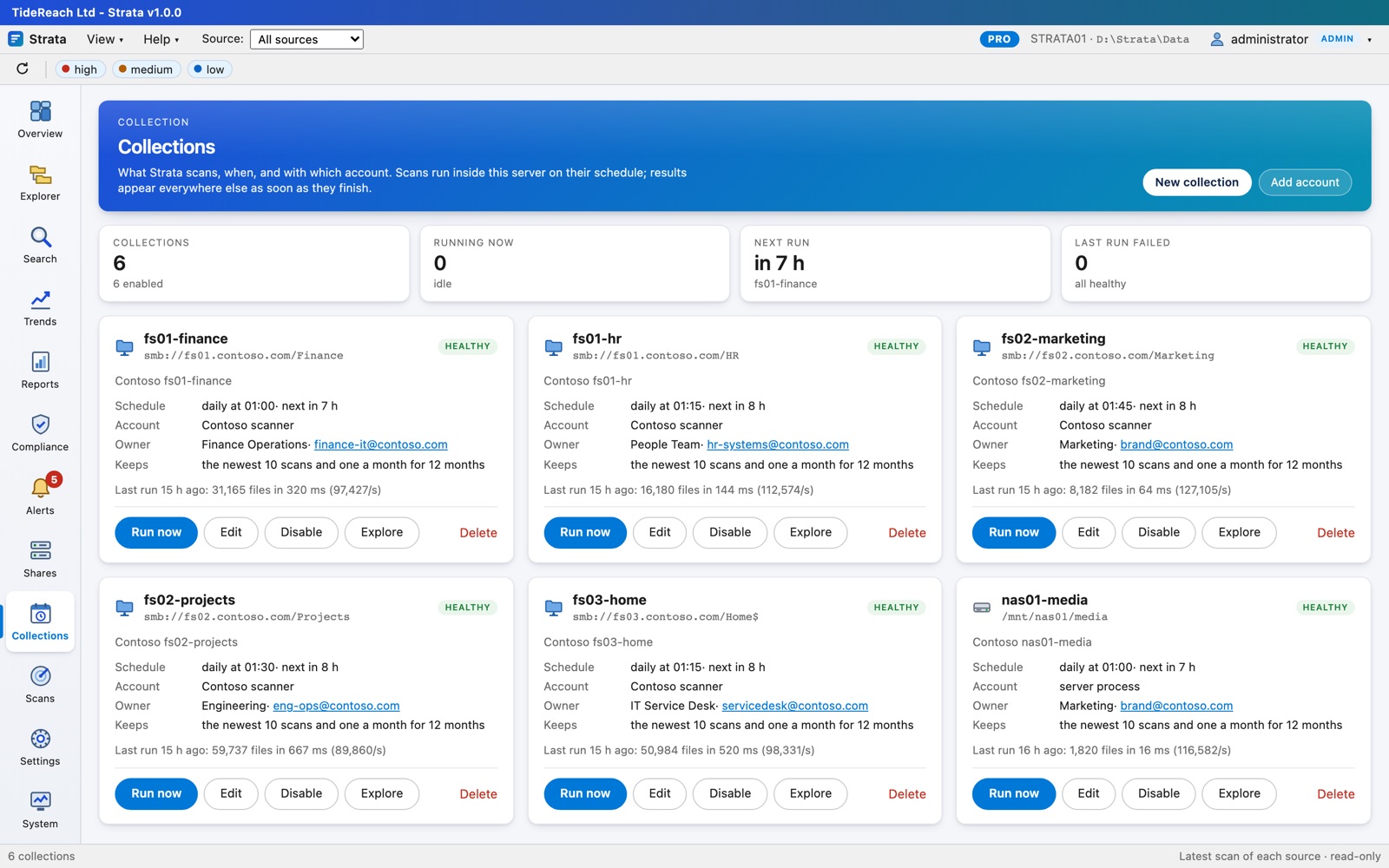
Collections, New collection: a name, the target (\\fs01\Finance as smb://fs01/Finance, or a local path), the account, a schedule, and how many scans to keep. Test checks the connection; Run now starts the first scan. Scans read folders in parallel; a share of a few million files usually takes minutes, depending mostly on the file server and the network.
NFS exports are scanned through a mount on the Strata server (Linux): mount the export read-only, for example sudo mount -o ro,nfsvers=3 nas01:/media /mnt/nas01/media, add it to /etc/fstab so it survives a restart, and point a collection at /mnt/nas01/media. Mount with ro and, where the NAS allows it, root squash off for the Strata server so every folder is readable.
Letting Strata change permissions (optional, Pro): on an SMB collection, Changes lets Strata apply approved remediation plans itself. Give it a separate account for this, not the scanning account: one that may change permissions on that share, such as a member of the file server's Administrators group, or an account holding the Restore files and directories right. Leave it off to keep Strata read-only; plans can still be run as PowerShell scripts.
Or let Strata find your shares: Shares, Find servers in AD, then Collect… next to any share.
9. Licensing
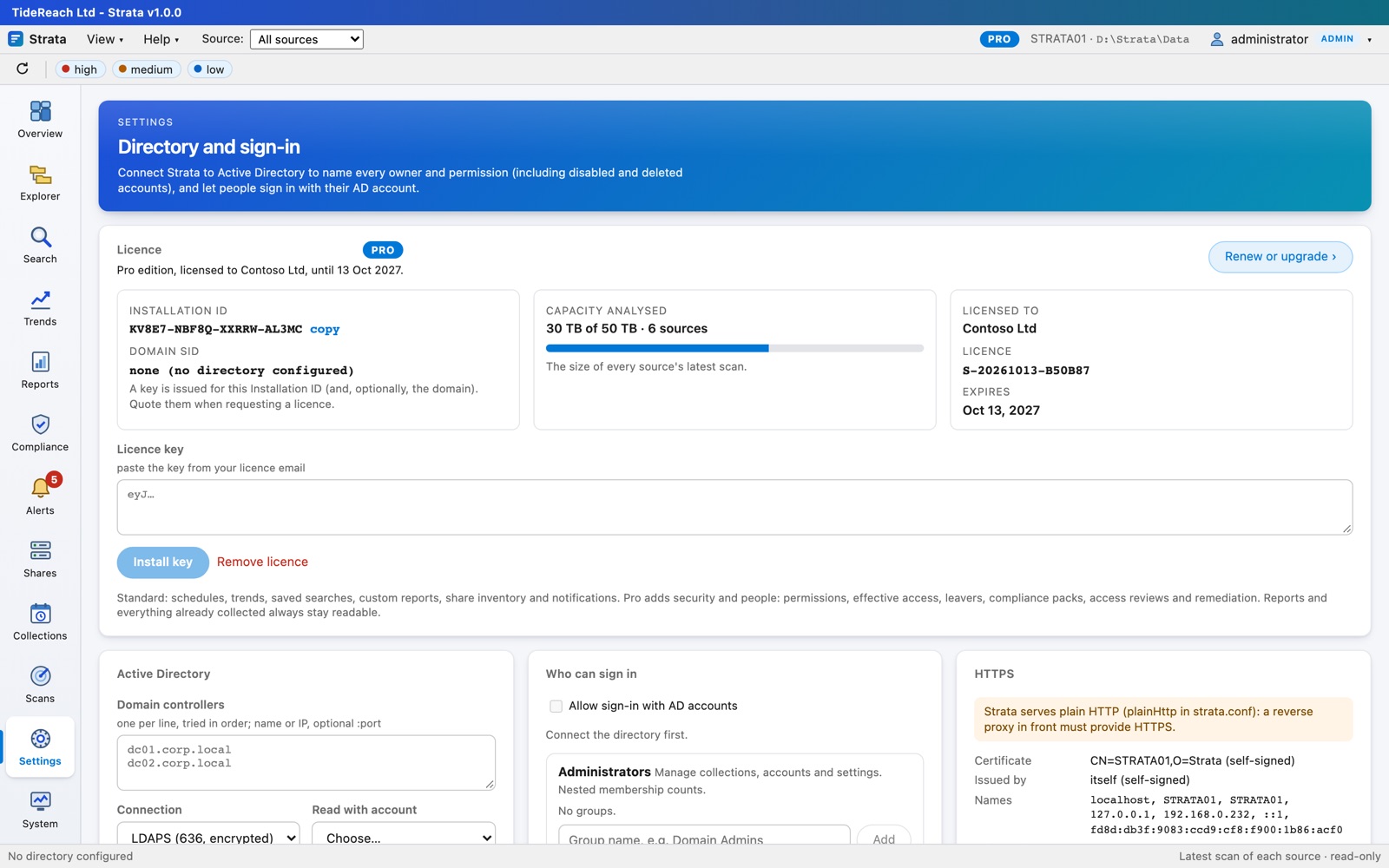
Strata runs as the free edition with no key: up to 2 TB in 3 sources, manual scans, and the capacity, age, structure and change reports. Standard and Pro licences are priced by the capacity Strata analyses.
Settings, Licence shows the Installation ID (and the domain SID, if AD is connected) that a key is issued for. Request a licence at strata.tidereach.uk/buy.html (the Request a licence button fills them in). Within one working day you receive a 30-day trial key of the edition and capacity you asked for; paste it in and choose Install key. If you keep Strata, an invoice follows and the 12-month key is emailed once it is paid: install it the same way. When a trial ends without a licence, Strata returns to the free edition and keeps everything it has collected. A key works on the server it was issued for; moving the data does not move the licence.
When a licence expires, or the capacity grows past it, Strata gives 30 days' grace, then pauses new scans until a renewal or upgrade is installed. Reports and everything already collected always stay available.
10. Upgrading, moving and uninstalling
- Upgrade: install the newer package over the old one (
msiexec /i,apt install,dnf install). Settings, data, licence and sessions are kept. - Move the data: System, Storage, Move data… copies everything, verifies it, and switches over while Strata runs.
- Uninstall: Windows Settings, Apps; or
apt remove strata/dnf remove strata. The data is always kept; delete it by hand if you no longer need it (apt purgealso removes the settings). To remove every trace on Linux afterwards:sudo rm -rf /etc/strata /var/lib/strata && sudo userdel strata(use your data directory if you moved it).
11. Troubleshooting
- The console does not answer: check the service (
Get-Service Strata,systemctl status strata) and the log (strata.log,journalctl -u strata), and that the port is open. - A scan fails with access denied: the account needs Backup Operators (or read access) on the file server; Test on the collection shows what failed.
- Owners show as SIDs: connect Active Directory (section 6), then Settings, Re-resolve names in existing scans.
- Scheduled reports do not arrive: Reports, Scheduled shows each send and why one failed; Alerts has the same. Use Send test in Settings, Email, and check the junk folder and the mail server's logs.
- Reports are slow: System, Storage shows how fast the data directory answers. A network share or busy disk is the usual cause; move the data to a local disk.